
iPhone Notes in Email - Why Are My Notes Showing Up in Email? If you're seeing your iPhone Notes in Gmail, Yahoo, Outlook, or another email account, it can be confusing. You may wonder why something you wrote in the Apple Notes app is showing up under your email account.
Here's why: the iPhone Notes app can save and sync your notes using more than one account. Besides iCloud, Notes can also work with Google, Yahoo, and Microsoft Exchange accounts. That means your notes aren't all necessarily kept in one place. Some might be in iCloud. Some might be linked to an email account. Others might be saved only on your iPhone.
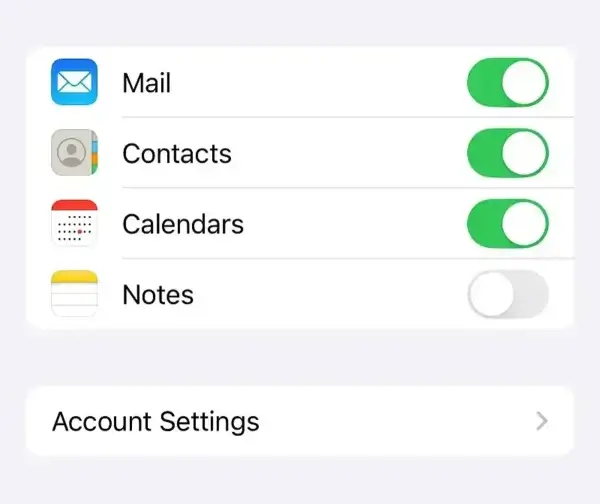
Here's the most important thing to know: turning off Notes for an account does not move those notes somewhere else. It just makes them stop showing up in the Notes app on your iPhone. Apple says the notes stay in that account, and they'll still show up on any other device already set up to use it.
So before you change any Notes settings, it's worth checking where your notes are actually stored.
Why Are iPhone Notes Showing Up in an Email Account?
The Notes app can save notes to a few different places. Depending on how your iPhone is set up, you might have:
- iCloud Notes - Notes saved through your Apple Account, so they show up on all your Apple devices.
- Google Notes - Notes linked to a Google account, if Notes is turned on for that account.
- Yahoo or Exchange Notes - Notes linked to those accounts, if they support Notes and it's turned on.
- On My iPhone - Notes saved only on your iPhone, not synced to any account.
Apple confirms that Notes can use iCloud, Google, Yahoo, Microsoft Exchange, and the On My iPhone option. This is why two notes sitting next to each other in the app might actually be stored in totally different places.
Before Turning Off Notes Sync, Check Where They're Stored
If you have notes you care about, check where your notes are stored before you change any settings.
- Open the Notes app.
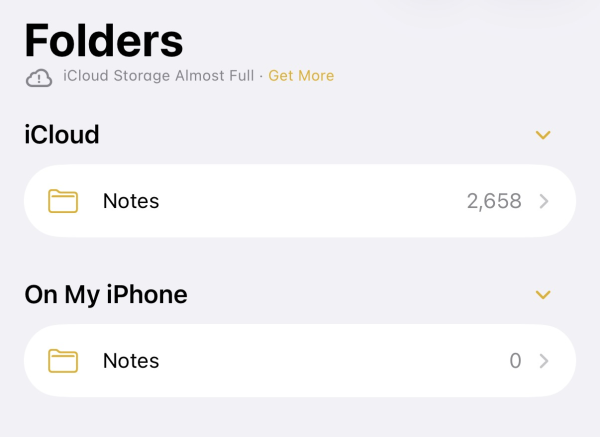
- Tap the Back button until you reach the main Folders screen.
- Look at the accounts and folders listed there.
- Figure out whether your notes are under iCloud, On My iPhone, Google, Yahoo, Exchange, or something else.
This matters because turning off Notes for an account makes that account's notes disappear from the app. It does not move them to iCloud or to On My iPhone.
How to Stop an Email Account From Syncing Notes
If you don't want an account like Gmail or Yahoo to be used for Notes, you can turn Notes off for that account.
Here's the part people often get wrong: Gmail, Yahoo, and Exchange accounts are set up through the Mail app, and that's also where you turn Notes on or off for them - not inside the Notes app itself. On current versions of iOS:
- Open Settings.
- Tap Apps.
- Tap Mail.
- Tap Accounts.
- Tap the account you want to change (Gmail, Yahoo, Exchange, etc.).
- Turn Notes off.
You can keep using that account for email even after you turn off Notes for it.
One thing to watch for: Settings > Apps > Notes also has an "Accounts" option, but that's just for adding or removing accounts completely. It won't let you turn Notes on or off for an account you already have. For that, use the Mail steps above.
Important: What Happens When You Turn Off Notes?
This is the part that trips people up the most.
When you turn off Notes for an account, that account's notes stop showing up on your iPhone.
But that doesn't mean they're gone for good. Apple says the notes stay right where they were - in your Google account, your iCloud account, or wherever - and they'll still be there on any other device already using that account.
For example, say your Google account has Notes turned on, and you turn it off on your iPhone. Here's what happens:
- Your Google notes disappear from the Notes app on that iPhone.
- They don't get moved to iCloud.
- They don't get moved to On My iPhone either.
- They stay linked to your Google account.
- Other devices already using that Google account can still see them.
So if your notes suddenly disappear after you turn off Notes for an account, don't panic and don't assume they're deleted.
Check the account where they were stored first.
How to Keep Notes Only on Your iPhone
If you'd rather keep some notes just on your iPhone, without syncing them anywhere, Apple has an On My iPhone option for that.
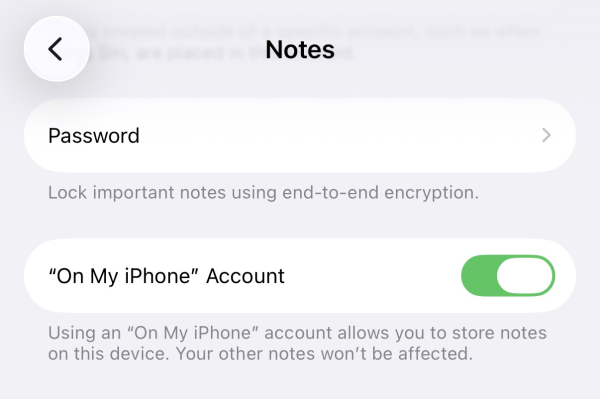
To turn it on:
- Open Settings.
- Tap Apps.
- Tap Notes.
- Turn on "On My iPhone" Account.
Notes you save this way only show up on that one iPhone. They're still backed up if you use iCloud Backup for your whole phone.
Once it's turned on, you can pick On My iPhone as the location when you make a new note.
Heads up: turning on On My iPhone does not move your existing iCloud, Google, Yahoo, or Exchange notes over automatically. If you want to move an important note somewhere else, do that first and double check it landed in the right place before turning off the original account.
How to Move Important Notes Before Disabling an Account
If you've got notes you care about sitting in an email account and you want to stop using that account for Notes, go slow and follow these steps.
- Open the Notes app.
- Go to the account or folder with the notes you care about.
- Pick out the notes you want to keep.
- Make sure iCloud or On My iPhone is set up as a place to move them to.
- Move or copy the notes there, if that option is available.
- Check that the notes actually show up in the new spot.
- Only then turn off Notes for the original account.
The rule to remember:
Know where your notes live before you change any sync settings.
What About iCloud Notes?
iCloud Notes is Apple's own note storage, built into your Apple Account.
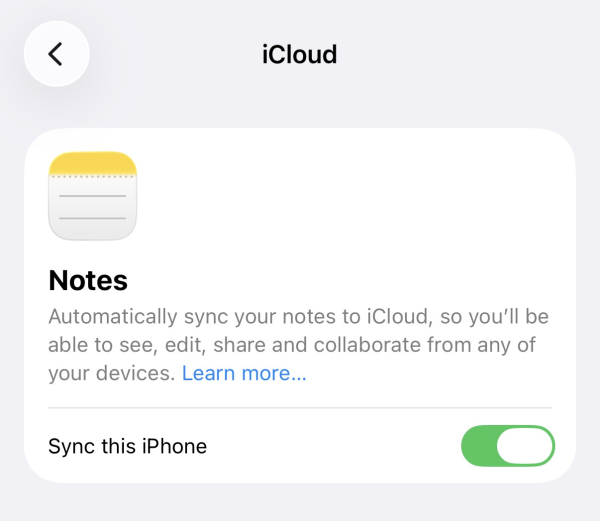
To check whether it's syncing:
- Open Settings.
- Tap your name at the top.
- Tap iCloud.
- Tap See All (or Show All), then tap Notes.
- Make sure "Sync this iphone" is turned on.
Once this is on, any note you add or change shows up on all your Apple devices signed in with the same Apple Account.
Should You Delete the Notes From Your Email Account?
Don't delete anything just yet. If your notes are linked to a Google, Yahoo, or Exchange account, don't assume that folder is just a bunch of duplicate emails. Those notes might be the only real copy you have.
If all you want is for your iPhone to stop using that account for Notes, you don't need to delete anything. Just turn off Notes for that account in the Mail app's account settings, like shown above. You'll still be able to use that account for email like normal.
What If My Notes Suddenly Disappeared?
If you turned off Notes for an account and your notes vanished, here's what to check.
First, see if Notes got turned off for that account:
Settings > Apps > Mail > Accounts > [email @ account]
Tap the account that used to have your missing notes, and check the Notes setting.
If it's off, that's why the notes disappeared from the Notes app on your iPhone.
Turn it back on, and those notes should show up again.
You can also log into that account directly (like on a computer) to check that the notes are still there. Apple says notes stay in the original account even after you remove it from Notes on your iPhone.
Frequently Asked Questions
Why are my iPhone Notes showing up in my email account?
The Notes app can save notes to accounts like Google, Yahoo, Microsoft Exchange, and iCloud. If Notes is turned on for one of these, your notes get linked to that account instead of just iCloud or your iPhone.
Will turning off Notes delete my notes?
No. Turning off Notes for an account just makes those notes stop showing up in the Notes app. Apple says they stay saved in that account and on any other device already using it. Still, it's smart to double-check where your important notes are stored before you change anything.
Why did my Notes disappear after I turned off Notes for my Gmail account?
Those notes were probably stored in your Google account, not on your iPhone or in iCloud. Turning off Notes for Gmail hides them from the Notes app. Turn Notes back on (Settings > Apps > Mail > Accounts > the account) and they should come back.
How do I stop Gmail from syncing Notes with my iPhone?
Go to Settings > Apps > Mail > Accounts, tap your Google account, and turn Notes off. You can still use that Gmail account for email as usual.
How do I keep Notes only on my iPhone?
Go to Settings > Apps > Notes and turn on "On My iPhone" Account. Notes you save there only show up on that iPhone, though they're still included if you back up your whole phone with iCloud.
Does turning off Notes automatically move my notes to iCloud?
No. Your notes stay with the original account. Nothing gets moved automatically.
Can I continue using Gmail after turning off Notes?
Yes. Turning off Notes doesn't affect email at all - you can keep sending and receiving mail like normal.
Should I delete the Notes folder from Gmail?
Not unless you're sure you don't need those notes anymore. If you just want your iPhone to stop showing them, turn off Notes for that account in Mail's settings instead of deleting anything.
Final Thoughts on iPhone Notes and Email Accounts
The big idea here: the Notes app can pull from more than one account at once.
Your notes might live in iCloud, Google, Yahoo, Microsoft Exchange, or right on your iPhone under On My iPhone. These are separate places - one doesn't automatically back up or replace another.
If you want an email account to stop being used for Notes, turn it off under Settings > Apps > Mail > Accounts. Just check where your notes are stored first, so you don't lose anything by accident.
Turning off Notes for an account hides those notes from your iPhone - it doesn't delete them, and it doesn't move them anywhere else. They stay put in that account.
Here's the safe way to handle it:
Find out where the note is stored, back it up or move it if it matters, make sure it landed somewhere safe, and then change your settings.
That little bit of caution now can save you from a stressful "Where did all my notes go?!" moment later.