
A MAC address identifies a network interface on a local network. You may need it to register a computer with a school or workplace network, configure router access controls, or troubleshoot an Ethernet or Wi-Fi connection.
This guide shows how to find the MAC address in Windows 11 and Windows 10, from Command Prompt, and on Linux. It also explains why the address shown for Wi-Fi may differ from the adapter's factory address when random hardware addresses are enabled.
What is a MAC address?
MAC stands for Media Access Control. A standard Ethernet or Wi-Fi MAC address is a 48-bit value, usually displayed as 12 hexadecimal characters in six pairs, such as:
00:1A:2B:3C:4D:5EA globally administered address is assigned to a network interface and its manufacturer identifier is commonly represented by the first 24 bits. However, not every MAC address is a permanent hardware identifier. Software can override an address, virtual adapters have their own addresses, and modern devices can use locally administered or randomized MAC addresses for privacy.
Find a MAC address in Windows 11
Using Settings:
- Open Start > Settings.
- Select Network & internet.
- For Wi-Fi, open Wi-Fi and select the connected network. For a wired connection, select Ethernet.
- Find Physical address (MAC) in the network properties.
Depending on your Windows 11 build, you can also find adapter details under Network & internet > Advanced network settings > Hardware and connection properties.
Find a MAC address using Command Prompt
This method works across current Windows versions and shows the addresses for multiple network adapters:
- Open the Start menu and search for Command Prompt.
- Open Command Prompt.
- Enter this command:
ipconfig /allFind the adapter you are using, such as Wireless LAN adapter Wi-Fi or Ethernet adapter. Its MAC address appears beside Physical Address.
You can also run:
getmac /vThis lists the physical addresses and connection names for the available adapters.
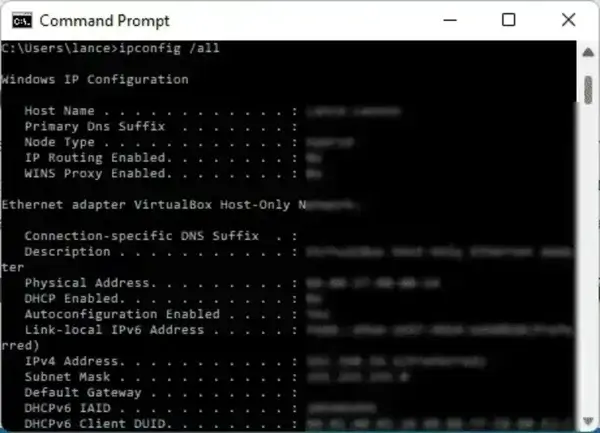
If several adapters appear, use the one matching the connection you need. A laptop may list separate Ethernet, Wi-Fi, Bluetooth, VPN, and virtual network adapters.
Find a MAC address on Linux
Open a terminal and run:
ip link showLook for link/ether beneath the interface name. That value is the MAC address for the interface. You can also display NetworkManager device details with:
nmcli device showLook for GENERAL.HWADDR under the relevant device. If you need the address for a specific interface, identify it by its name, such as eth0, enp3s0, or wlan0.
Why does my Wi-Fi MAC address look different?
Windows and other operating systems can use randomized hardware addresses to reduce tracking when scanning for or connecting to Wi-Fi networks. The randomized address may be different from the network adapter's factory-assigned address, and it can vary by wireless network.
If you are registering a device with a router, school, or business network, provide the MAC address that the device is actually using for that network. In Windows, check the Wi-Fi network's properties and its Random hardware addresses setting before registering the address.
What is a MAC address used for?
- Registering a device on a managed Wi-Fi or Ethernet network.
- Creating router access-control or DHCP reservation rules.
- Identifying a specific network interface while troubleshooting.
- Checking which adapter is active on a computer with multiple network connections.
Legacy Windows 95, 98, and ME
On these older Windows versions, the winipcfg utility displays network adapter information. Open Start > Run, enter winipcfg, choose the adapter, and look for Adapter Address. This method applies only to those legacy systems.
For more detail about randomized Wi-Fi hardware addresses, see Microsoft's guide to connecting to a Wi-Fi network in Windows.