
Restore Your PC After a Windows Reset: Wondering what to do after resetting Windows 10 or Windows 11? This simple solution shows how to recover files, reinstall apps, fix drivers, and secure your system so it runs like new again.
Restore Your PC after a Reset (Step by Step Solution)
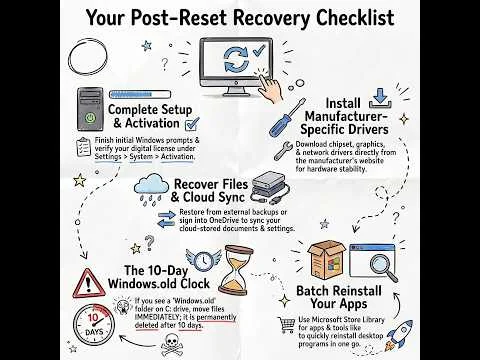
Quick Checklist After a Windows Reset
- Complete Windows setup and sign in
- Check activation status
- Install Windows updates
- Reinstall drivers
- Restore personal files
- Reinstall apps and programs
- Secure your system
What Happens in a Windows Reset?
A Windows reset reinstalls the operating system (OS) and gives you the option to either keep your personal files or remove everything for a completely fresh start.
You will typically be presented with two reset options:
- Keep my files: Removes installed apps and resets system settings, but keeps your personal files such as documents, pictures, and downloads.
- Remove everything: Deletes all files, apps, and settings, then reinstalls Windows from scratch. This is similar to a factory reset.
Important: Even when choosing "Keep my files", all programs, drivers, and custom settings will still be removed and need to be reinstalled.
What to Do After Resetting Windows 10 or Windows 11
Follow these steps to get your system fully restored and running smoothly again:
1. Complete Initial Windows Setup
- Set your region and language
- Connect to Wi-Fi
- Sign in to your Microsoft account (or create a local account)
- Set up a PIN or password
2. Check Windows Activation
- Go to Settings → System → Activation
- If it is not activated, sign in with your previous Microsoft account to restore your digital license
3. Reinstall Drivers After Resetting Windows
Windows installs basic drivers, but it is best to reinstall manufacturer-specific drivers:
- Open Device Manager (Right-click Start → Device Manager) and look for warning icons
- Visit your device manufacturer's website and download:
- Chipset drivers
- Graphics drivers (Intel, AMD, NVIDIA)
- Audio, Wi-Fi, and Bluetooth drivers
4. Recover Files After a Windows Reset
- If you chose "Keep my files", your personal files are usually still available in Desktop, Documents, and Downloads
- If you chose "Remove everything", you will need to restore files from a backup
Ways to restore your files
- External drives (USB, HDD, SSD backups)
- Cloud storage (OneDrive, Google Drive, Dropbox)
- Backup tools (File History, Macrium Reflect, Acronis)
Recover Files from the Windows.old Folder
If you reset Windows and chose to keep files, or recently performed an upgrade, you may find a Windows.old folder on your system drive.
Important: This folder is only available for a limited time after a reset or upgrade.
This folder can contain your previous user files and data.
How to access it
- Open File Explorer
- Go to This PC → Local Disk (C:)
- Open the Windows.old folder
- Navigate to Users → Your Username
- Copy important files to your new folders
Note: The Windows.old folder is automatically deleted after about 10 days, so recover files as soon as possible.
5. Reinstall Your Apps and Programs
Windows reset removes all non-default programs. Here is how to reinstall your apps:
- Microsoft Store apps: Open Microsoft Store → Library to reinstall apps
- Desktop programs:
- Web browsers (Chrome, Firefox)
- Office suites (Microsoft 365, LibreOffice)
- Media players (VLC)
- Antivirus software (if not using built-in Defender)
- Creative or productivity tools (Adobe, AutoCAD)
- Email clients like Thunderbird
- Use Ninite to quickly install multiple apps safely
6. Reconfigure System Settings
- System settings (power plan, display resolution, default apps)
- Network settings (Wi-Fi, VPNs)
- Personalization (wallpaper, theme, taskbar)
- Security and privacy settings (permissions, BitLocker, login options)
7. Sync OneDrive or Other Cloud Accounts
- Sign in to your Microsoft account
- Go to Settings → Accounts → Windows Backup
- Enable syncing to restore backed up files
8. Secure Your Windows PC After a Reset
- Open Windows Security and confirm real-time protection is enabled
- Run Windows Update to install the latest security updates
- Ensure firewall protection is active
- Optionally install additional antivirus software
9. Check for Windows Updates
- Go to Settings → Windows Update → Check for updates
- Install all available updates, including optional drivers
Common Problems After a Windows Reset
After resetting your PC, you may encounter some common issues:
- No internet connection: Install or update network drivers
- Missing drivers: Check Device Manager for warnings
- Windows not activated: Sign into your Microsoft account
- Apps not working: Reinstall required programs
- Missing files: Restore from backup or check Windows.old
Most of these issues can be resolved quickly by updating drivers, running Windows Update, and reinstalling any missing software.
10. Create a Recovery Plan for the Future
- Create a restore point (search "Create Restore Point")
- Use a system image tool like Macrium Reflect or Acronis
- Enable File History or cloud backups for continuous protection
Pro Tips
- The Windows.old folder (if present) contains previous files and is deleted automatically after about 10 days
- Keep a list of your most-used apps to speed up future resets
- Sync browser bookmarks and passwords using Chrome, Edge, or Firefox accounts
Additional Recovery Option: Using System Restore
If you want to fix issues without a full reset, consider using System Restore. This feature allows you to revert your PC to a previous working state without affecting personal files.
When to Use System Restore
- After installing problematic software or drivers
- To undo recent system changes causing errors
- When you want a quick fix without reinstalling everything
How to Use System Restore
- Search for Create a restore point in the Start menu
- Click System Restore
- Select a restore point from before the issue began
- Follow the prompts to restore your system
Note: System Restore does not affect personal files but may remove recently installed apps or drivers.
Final Thoughts on Restoring Your PC
Restoring your PC after a Windows reset may feel like starting over, but following a structured process makes it much faster and easier. Once your files, apps, and settings are back in place, your system should run cleaner and more efficiently than before.
To avoid future data loss, set up a reliable backup system. A simple backup plan can save hours of time and frustration if you ever need to reset your PC again.
Tip: Bookmark this guide so you can quickly restore your PC anytime you perform a reset.
Need to restore your email client too? Check out this guide:
Restoring Thunderbird After a Reset