
Use Microsoft's official Windows 11 Media Creation Tool to create a bootable USB installer for a compatible 64-bit PC. Back up any files on the USB drive first because the tool erases it. Booting from the USB is generally used for a clean installation or reinstall; to upgrade the Windows installation you are currently using while keeping files and apps, run Windows Setup from within Windows or use Microsoft's Installation Assistant. If you are using a Lenovo Yoga, see our guide to opening the Lenovo boot menu.

Follow this step-by-step guide to create Windows 11 installation media on a USB flash drive. You can use it to install or reinstall Windows on a compatible PC; creating the USB does not bypass Windows 11's hardware requirements.
Make a bootable USB Installer | Windows 11
This tutorial walks you through the steps to use the Windows 11 Media Creation Tool to create a bootable USB drive for installing Windows 11. Be sure to back up your USB drive before proceeding as your selected USB drive will be overwritten.
Step 1: Download Windows Media Creation Tool
- Visit the Microsoft website.
- Locate the "Create Windows 11 Installation Media" section.
- Click on the Download Now button to download the Media Creation Tool.
Step 2: Prepare Your USB Drive
- Insert a fast USB flash drive into your computer (minimum 8 GB storage capacity is recommended).
- Important: Backup any data on the USB drive, as the Media Creation Tool will erase all files during the process.
Step 3: Run the Media Creation Tool
- Open the downloaded
MediaCreationTool.exefile. - If prompted, click Yes to allow the program to make changes to your device.
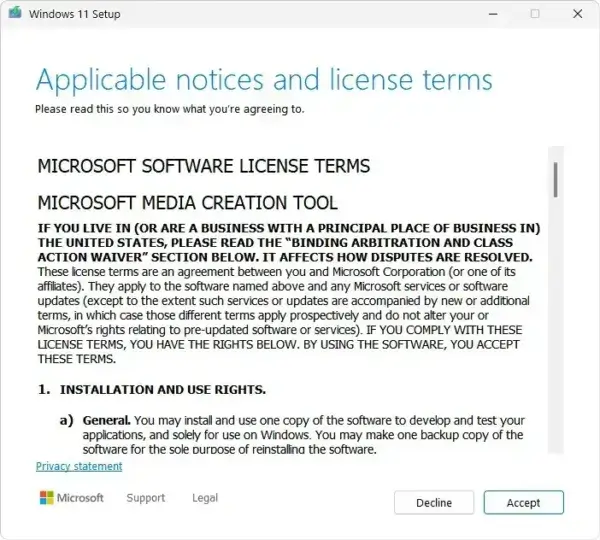
- Read the license terms, then click Accept to continue.
- On the What do you want to do? screen, select Create installation media for another PC, then click Next.
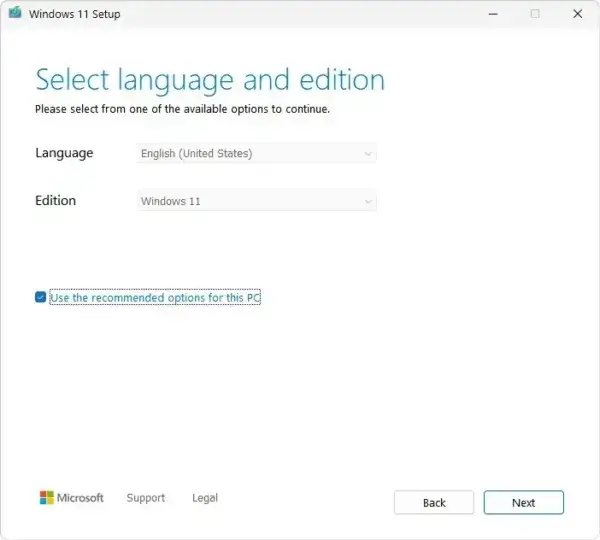
Step 4: Select Language and Windows Edition
- Choose your preferred Language and Edition of Windows 11.
- Click Next to continue.
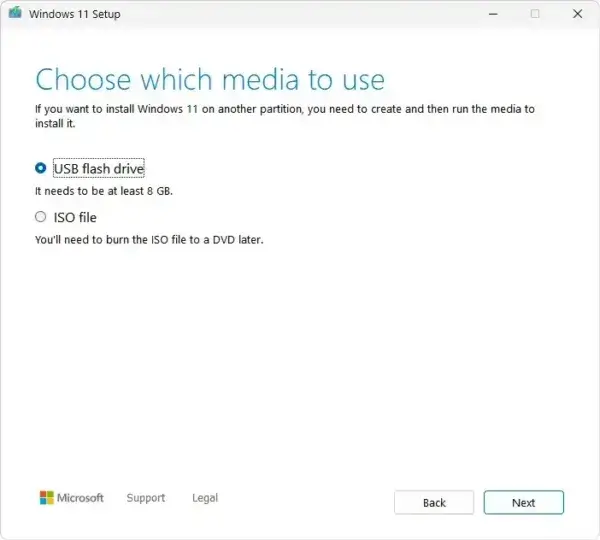
Step 5: Choose the USB Flash Drive
- On the media selection screen, choose USB flash drive, then click Next.
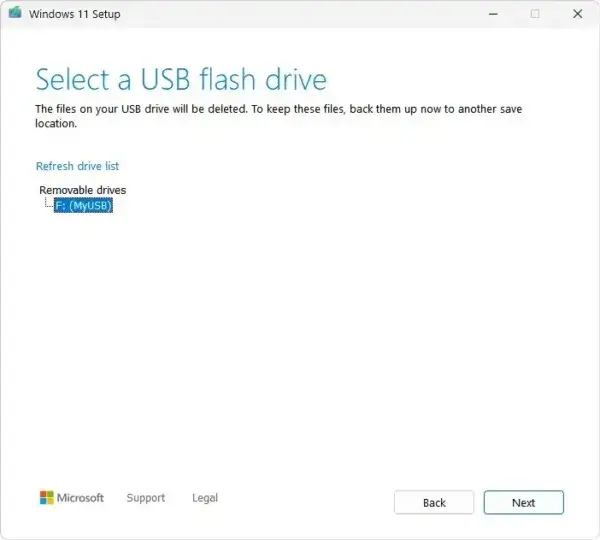
Select your USB flash drive from the list. If it doesn't appear, click Refresh.
The Media Creation Tool will now begin downloading the Windows 11 installation files.
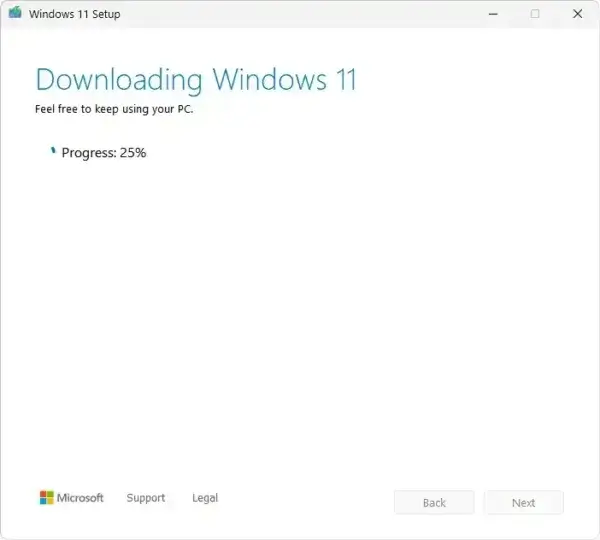
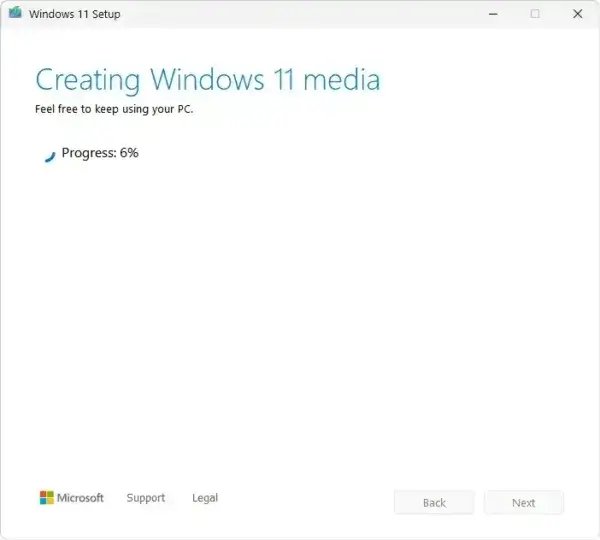
Once the download is complete, it will proceed to create the Windows 11 installation media on your USB drive.
Before you boot from the USB: Back up personal files on the target PC. A clean installation can remove files, apps, and settings from the computer's internal drive.
Step 6: Reboot from the USB Bootable Installer
- Leave the bootable USB flash drive connected, then reboot your computer.
- Access your system BIOS/UEFI settings and set the USB drive as your first boot device. (This is often done by pressing
F2,F10, orDELduring startup, depending on your computer.) - Save the changes and restart your PC. It should now boot from the USB Windows 11 Installer.
FAQ: Windows Media Creator Questions
Here are some of the most frequently asked questions and answers regarding using the Windows Media Creation tool to make a Windows 11 Bootable USB Installer:
Can I use this tool to upgrade directly to Windows 11?
The Media Creation Tool is primarily used to create installation media. To upgrade the PC you are currently using while keeping files and apps, use Microsoft's Windows 11 Installation Assistant or open the created media in File Explorer and run setup.exe from within Windows. Booting directly from the USB is generally used for a clean installation or reinstall.
Do I need a product key to use the Windows Media Creation Tool?
No. The tool itself does not require a product key. You will only need one to activate Windows after installation if your hardware or Microsoft account does not already have a digital license.
What are the system requirements for Windows 11?
Your PC must meet Microsoft’s minimum requirements, including a compatible processor, 4 GB of RAM, 64 GB of storage, TPM 2.0, and Secure Boot support. Always verify compatibility before installing.
Can I reuse the same bootable USB on multiple computers?
Yes. As long as the USB drive remains intact, it can be used on multiple compatible PCs. Licensing and activation are handled per device.
What if my computer does not boot from the USB drive?
Check that the USB drive is set as the first boot device in BIOS or UEFI. If it still fails, try recreating the installer or using a different USB port or drive.
Can I create a Windows 11 bootable USB on a Mac?
Not with Microsoft's Windows Media Creation Tool, which runs on Windows. You can download an official Windows 11 ISO, but creating usable installation media from macOS depends on the Mac's hardware and the tool used. Boot Camp Assistant is not a general-purpose Windows 11 USB creator, especially on Apple silicon Macs.
Conclusion
Congratulations! You've successfully created a bootable USB installation drive for Windows 11 using the Media Creation Tool. Use this drive to perform a clean installation or reinstall Windows 11 on a compatible PC. To upgrade the Windows installation you are currently using while keeping apps and files, run Setup from within Windows instead of booting from the USB. If you have any questions or run into issues, feel free to contact me to let me know so that I can update this guide. If you found this segment useful, you might also want to check out how to make a Windows bootable USB using YUMI. A Multiboot USB tool that allows you to store and then run Multiple Windows Setup Installers and Live Linux ISO files from one bootable USB.