
Can't Reset PC Because It's Running Windows To Go? Here's the Fix.
If your PC shows the error "This PC can't be reset because it is running Windows To Go", the fix is straightforward: open Registry Editor, navigate to HKEY_LOCAL_MACHINE\SYSTEM\CurrentControlSet\Control, and delete the PortableOperatingSystem value. Full steps are below.
This error can appear on systems that aren't actually running Windows To Go. It typically happens after a corrupted update, an unexpected shutdown, or a third-party tool alters a single registry value. Once that value is removed, the factory reset option returns to normal.
What Is Windows To Go?
Windows To Go is a feature introduced in Windows 8 Enterprise that allows you to run a full Windows installation directly from a USB drive or external storage device. It was also supported in some editions of Windows 10, but was deprecated in Windows 10 version 1903 and is no longer actively supported by Microsoft.
When the system incorrectly identifies itself as running Windows To Go - due to a registry misconfiguration rather than an actual portable installation - it blocks the factory reset option in Settings. The fix targets that misconfiguration directly.
Why Does My PC Think It's Running Windows To Go?
Common causes include:
- An external USB drive with Windows installed being connected during an update or restart
- Corrupted or incomplete Windows updates that alter system identification settings
- Registry changes left behind by third-party tools or caused by an unexpected shutdown
None of these require your PC to actually be running Windows To Go - the registry value alone is enough to trigger the error.
Fix: Delete the PortableOperatingSystem Registry Value
Steps to Fix "This PC Can't Be Reset Because It Is Running Windows To Go"
- Press Windows + R to open the Run dialog.
- Type
regeditand press Enter. Click Yes if prompted by User Account Control. - In Registry Editor, navigate to the following key:
HKEY_LOCAL_MACHINE\SYSTEM\CurrentControlSet\ControlYou can paste that path directly into the Registry Editor address bar.
- In the right-hand pane, look for a value named
PortableOperatingSystem. - Right-click
PortableOperatingSystemand select Delete. Confirm when prompted.
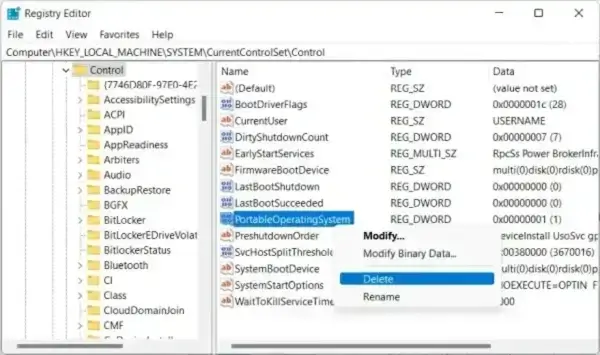
Delete the PortableOperatingSystem value from the Control key - Close Registry Editor and restart your PC.
- After restarting, go to Settings → System → Recovery → Reset this PC and attempt the factory reset again.
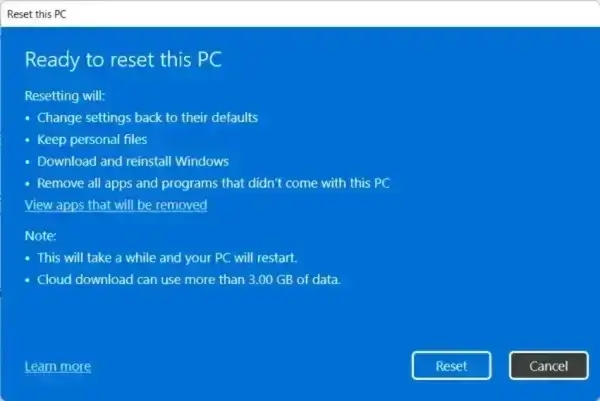
Reset this PC should now be available under Settings → System → Recovery
If the Error Persists
If removing the registry value doesn't resolve the issue, try these additional steps:
- Disconnect all external drives before attempting the reset. A connected USB drive with an OS on it can re-trigger the detection.
- Run System File Checker to repair corrupted system files. Open Command Prompt as Administrator and run:
sfc /scannow - Perform a clean install using a bootable USB Windows installation drive if the reset option remains unavailable. This bypasses the recovery environment entirely.
Summary
The "This PC can't be reset because it is running Windows To Go" error is almost always caused by a single stale registry value rather than an actual Windows To Go configuration. Deleting PortableOperatingSystem from HKEY_LOCAL_MACHINE\SYSTEM\CurrentControlSet\Control resolves it in most cases. If the error returns after a reboot, check for connected external drives with bootable Windows installations before trying it once again.