
How to Change Windows Product Keys on Windows 10 or Windows 11: Need to update or replace your Windows product key to activate Windows? Whether you are activating a clean installation, fixing an activation error, or switching to a different Windows edition, there are two quick and reliable ways to change your Windows product key: through Windows Settings or by using the Command Prompt.
Similar to my article on how to change an Office Product Key, in this simple solution, you will learn how to change your Windows product key using both graphical and command line methods. In addition, I'll cover how to troubleshoot common activation problems, and how to verify that Windows is properly activated once you are done changing serial keys.
Change Windows Product Key Using Settings (Recommended)
This is the easiest and most user friendly method. It works on both Windows 10 and Windows 11 and is recommended for most users.
- Press Windows + I to open the Settings app.
- In the Settings window, type Activation into the search bar.
- Select Activation settings from the search results.
- Under the Change product key section, click Change.
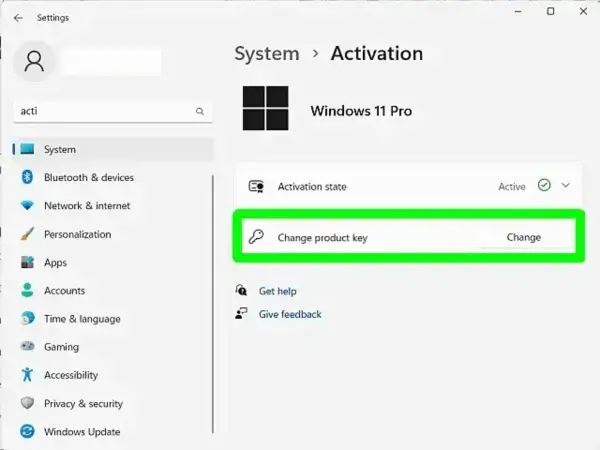
- Enter your new 25 character Windows product key.
- Click Next and follow the on screen instructions to complete activation.
Important: Your product key must match your installed Windows edition, such as Home, Pro, or Enterprise. A mismatch will cause activation to fail.
Change Windows Product Key Using Command Prompt
This method is useful for advanced users, troubleshooting activation issues, or situations where the Settings app is unavailable.
- Press Windows + R, type
cmd, then press Enter. - Right click Command Prompt and choose Run as administrator.
- To remove the current product key, enter:
slmgr /upk - To install your new Windows product key, enter:
slmgr /ipk your-new-product-key - To activate Windows, enter:
slmgr /ato
After a few moments, you should see a confirmation message indicating that Windows has been successfully activated.
Troubleshooting Windows Activation Issues
If Windows does not activate after changing your product key, try the following steps:
- Check your internet connection: Online activation requires a stable internet connection.
- Confirm your product key: Make sure the key is typed correctly and matches your Windows edition.
- Use the Activation Troubleshooter: Go to Settings > Activation and select Troubleshoot.
- Restart your computer: This can resolve temporary activation service issues.
- Contact Microsoft Support: If activation still fails, Microsoft Support can verify your license.
Frequently Asked Questions
Can I change my Windows product key without reinstalling Windows?
Yes. You can change your Windows product key at any time using Activation settings or the Command Prompt without reinstalling Windows.
What happens if I enter an invalid Windows product key?
Activation will fail and Windows will display an error message. Make sure the key is valid and intended for your installed Windows edition.
Do I need an internet connection to activate Windows?
Yes. An active internet connection is required for online activation to complete successfully.
How can I check if my copy of Windows is activated?
Open Settings > Update & Security > Activation. Your activation status will appear at the top of the page.
Can I use one Windows product key on multiple devices?
In most cases, no. Retail and OEM Windows product keys are valid for one device. Volume and enterprise licenses may allow multiple activations.
Final Thoughts on Changing Windows Serial Keys
Changing Windows serial or product keys is straightforward and can be done in just a few minutes using either the Settings app or the Command Prompt. Whether you are upgrading your license, resolving activation issues, or activating a fresh installation, these methods work reliably on both Windows 10 and Windows 11.
Just be sure to use a valid product key that matches your Windows edition. If you encounter persistent activation problems, Microsoft Support is the best next step to get everything sorted out properly.