
Removing Old Drivers from Windows; In the following simple solution, I will show you how to remove old drivers from Windows using Device Manager. Leaving unused drivers behind after upgrading hardware can cause performance issues and hardware conflicts, especially with video cards, sound cards, USB devices, and network adapters.
Normally, Windows Device Manager only displays currently connected hardware. Old or non-present devices remain hidden unless you enable a special system flag to show them.
Remove Old Drivers from Windows
To display and remove inactive device drivers, you must launch Device Manager with non-present devices enabled.
- Click Start > All Programs > Accessories
- Right-click Command Prompt and select Run as administrator
- Type the following command and press Enter:
SET DEVMGR_SHOW_NONPRESENT_DEVICES=1
- Now start Device Manager by typing the following command and pressing Enter:
devmgmt.msc
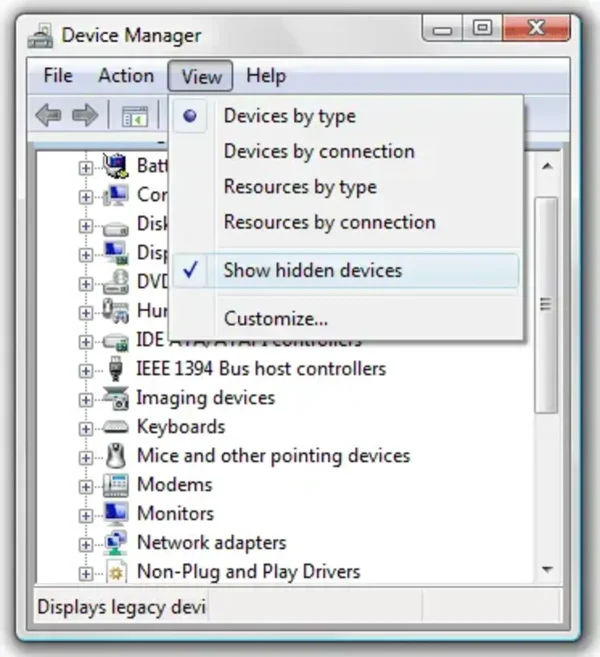
- From Device Manager, click View and select Show Hidden Devices
- Inactive devices will now appear grayed out. Right-click the device you want to remove and select Uninstall
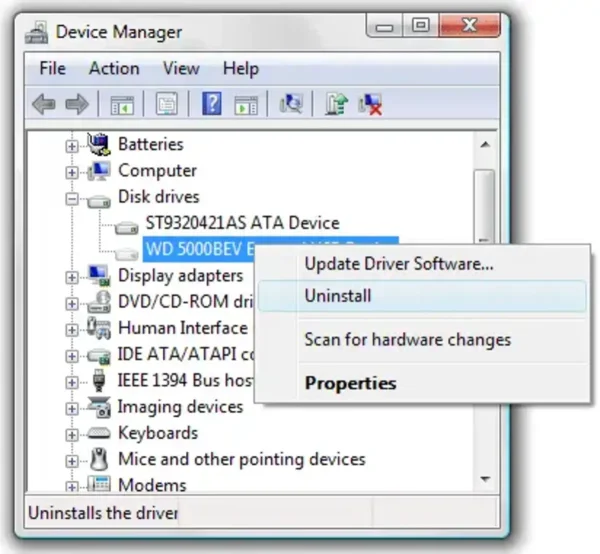
That is all there is to it. Your old drivers should now be removed from Windows.
What Are Non Present Devices?
Non present devices are hardware components that were previously installed but are no longer connected to the system. Examples include old video cards, USB devices, printers, network adapters, and sound cards.
Which Drivers Are Safe to Remove?
Safe to remove:
- Grayed out USB devices
- Old video or sound cards no longer in use
- Duplicate or unused network adapters
Use caution with:
- System devices
- ACPI entries
- Microsoft virtual devices
If you are unsure, leave the device installed.
Optional: Remove Old Driver Packages Automatically
Modern versions of Windows also provide a built-in cleanup option to remove unused driver packages.
- Press Windows + R
- Type:
cleanmgr
- Select your system drive
- Check Device driver packages
- Click OK
This method safely removes outdated driver packages that Windows no longer needs.