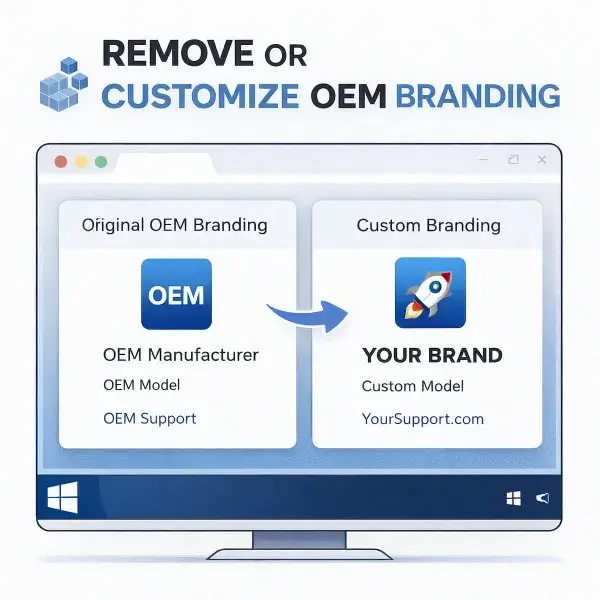
Easily Customize or remove OEM branding on Windows: In this tutorial, you'll learn how to add, remove, edit, or customize the factory OEM branding that is sometimes installed alongside Microsoft Windows. OEM branding usually includes a logo and system manufacturer information displayed in the System Properties applet.
This updated guide works for Windows 7, 8, 10, and 11.
Why Customize OEM Branding?
There are several reasons to customize OEM branding on your Windows PC:
- Remove manufacturer logos that you don't want displayed
- Add your own custom logo and system info
- Clean up system properties for resale or personal preference
How to Change or Remove Windows OEM Branding
- Press Windows + R to open the Run dialog, type regedit, and click OK to open the Registry Editor.
- Navigate to the following path:
HKEY_LOCAL_MACHINE\SOFTWARE\Microsoft\Windows\CurrentVersion\OEMInformation
If the OEMInformation key does not exist, you can download this OEM.reg file to create it.
- Within the OEMInformation key, you can modify or create the following string values:
- Manufacturer – The name of your company or custom text
- Model – Your custom model name (optional)
- SupportURL – Your support website (optional)
- Logo – Path to your custom logo file (must be .bmp, 120x120 pixels)
- Close the Registry Editor and reopen **System Properties** (Right-click This PC → Properties). You should see your updated OEM branding.
Customize Performance Information & Tools Logo
If you want your custom logo to also appear in the **Performance Information and Tools** section (Windows 7+) follow these steps:
- Open the Registry Editor (Windows + R → regedit).
- Navigate to:
HKEY_LOCAL_MACHINE\SOFTWARE\Microsoft\Windows NT\CurrentVersion\Winsat\WindowsExperienceIndexOemInfo
If the key does not exist, you can download ntoem.reg to create it.
- Create or modify the following string values:
- Logo – Path to a .bmp logo (120x120 pixels)
- Manufacturer – Optional manufacturer name
- Close the Registry Editor and open **Performance Information and Tools** to verify the new branding.
Notes:
- Logos must be in .bmp format and ideally 120x120 pixels; larger images are resized automatically.
- Editing the registry can cause system issues if done incorrectly. Always back up your registry before making changes.
- This works on **Windows 7, 8, 10, and 11**, though some keys may need to be manually created on Windows 10/11 if missing.
Once complete, your Windows system will display your custom OEM information in System Properties and optionally in Performance Information and Tools.