How to Forward Ports for Remote Desktop Access in Windows? If you're trying to use the Remote Desktop feature built into Windows and your host computer is behind a router, you'll likely need to forward a port on your router. Without port forwarding, you won’t be able to remotely access your PC from another computer via the internet.
This tutorial assumes you already know how to navigate your router’s port forwarding settings. It focuses only on identifying the correct port for Remote Desktop. Router interfaces vary, so check your router’s documentation for exact steps.
Remote Desktop Port for Windows
Question: Which port must be forwarded for Remote Desktop access?
Answer: Port 3389 is the default port used for Remote Desktop Protocol (RDP). This is the port you need to forward in your router's port forwarding section.
Example: Forwarding Port 3389 on a Linksys Router
In the Linksys router interface, navigate to Applications > Gaming and add a new entry for Remote Desktop:
- Application Name: Remote Desktop
- External Port: 3389
- Internal Port: 3389
- Protocol: TCP
- Enable: Checked
Additional Tips for Remote Desktop Port Forwarding
- Ensure your host PC has a static IP address on your local network so the port forwarding rule always points to the correct computer.
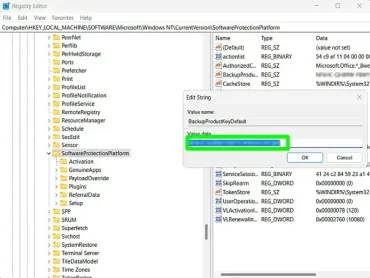
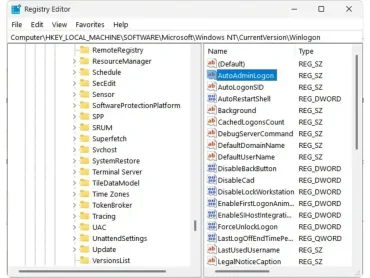
- Consider using a non-default port for added security. You can change the RDP listening port in the Windows Registry (
HKEY_LOCAL_MACHINE\System\CurrentControlSet\Control\TerminalServer\WinStations\RDP-Tcp\PortNumber). - Check that your firewall on the host PC allows inbound connections on port 3389 (or your custom port).
- Test your connection internally first before trying to connect from the internet.
Summary
To access Windows Remote Desktop from outside your network, forward port 3389 on your router to your host PC. Ensure your firewall allows RDP traffic and consider using a custom port for better security. Once configured, you can connect to your PC remotely using the Windows Remote Desktop client or compatible software.