
The Lenovo Boot Menu key allows you to quickly select a different boot device without permanently changing BIOS settings. This guide explains how to access the Lenovo Boot Menu and boot from USB on Yoga, ThinkPad, IdeaPad, Legion, ThinkBook, and other Lenovo laptops.
Whether you are installing Windows, running Linux, or launching recovery tools, selecting the correct boot device is simple once you know the correct key.
What Is the Lenovo Boot Menu Key?
The most common Lenovo Boot Menu key is F12.
On some models, you may need to press Fn + F12 if the function keys are set to multimedia mode.
Instead of holding the key down, power on the laptop and tap F12 repeatedly immediately after pressing the power button.
If successful, the Boot Menu screen will appear, allowing you to select a USB drive, external SSD, or internal drive.
How to Boot from USB on a Lenovo Laptop
Follow these steps to make your Lenovo boot from USB:
- Insert your bootable USB drive.
- Shut down the laptop completely.
- Power it on and immediately tap F12 repeatedly.
- When the Boot Menu appears, use the arrow keys to highlight your USB device.
- Press Enter to boot from the selected device.
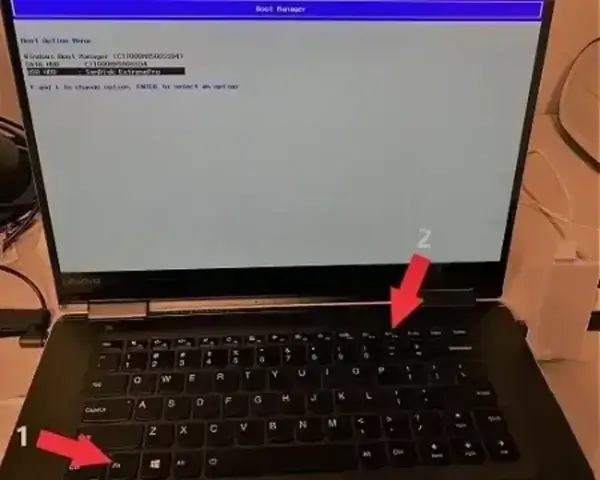
This performs a one-time boot. Your default boot order will remain unchanged.
Lenovo Boot Menu Keys by Model
While F12 works on most systems, here are common variations:
- ThinkPad: F12 (press Enter first on some older models)
- IdeaPad: F12 or F11
- Legion: F12
- Yoga: F12 (some models use the Novo button)
- ThinkBook: Press Enter at startup to open the Startup Interrupt Menu, then choose F12 for Boot Menu
- ThinkBook 15 G2 ITL: Press Enter at startup, then choose F12 for Boot Menu or F1 for BIOS Setup
- Flex: F12
- Lenovo V Series: F12
- 300 / 500 / 700 / 900 Series: F12
If F12 does not work, your system may use the Novo button.
How to Use the Lenovo Novo Button
Many Lenovo laptops include a small recessed Novo button near the power button or on the side of the device.
To use it:
- Turn off the laptop.
- Press the Novo button using a paperclip.
- Select Boot Menu from the Novo Menu.
This method works even if the keyboard shortcut fails.
Boot Menu vs BIOS Boot Order
The Lenovo Boot Menu allows a temporary boot selection.
If you want to permanently change the boot drive:
- Restart the laptop.
- Tap F1 or F2 to enter BIOS.
- Navigate to the Boot tab.
- Adjust boot priority order.
- Save changes and exit.
Use this method if you want your system to always boot from a specific drive.
ThinkBook Startup Interrupt Menu
On many ThinkBook models, pressing Enter at the Lenovo logo opens the Startup Interrupt Menu. From there:
- Press F1 for BIOS Setup
- Press F12 for Boot Menu
Why Your Lenovo Is Not Detecting the USB Drive
If the USB device does not appear in the Boot Menu, check the following:
- Ensure the USB was created properly using tools like Rufus or Universal USB Installer.
- For pure UEFI boot, use FAT32 formatting when required.
- Disable Secure Boot in BIOS if your operating system does not support it.
- Confirm that USB Boot is enabled in BIOS settings.
- Try a different USB port.
Modern Windows and many Linux distributions support Secure Boot, but older tools may require it to be disabled.
How to Enable VT-x / AMD-V Virtualization in Lenovo BIOS
If you are using VirtualBox and see errors such as:
- "VT-x is not available"
- "AMD-V is disabled in the BIOS"
- "Nested VT-x/AMD-V is not supported"
Your Lenovo laptop likely has hardware virtualization disabled in BIOS.
Step 1: Enable Virtualization in Lenovo BIOS
- Shut down your laptop.
- Power it on and tap F1 or F2 to enter BIOS setup.
- Navigate to the Advanced or Configuration tab.
- Locate Intel Virtualization Technology (VT-x) or SVM Mode (for AMD).
- Set it to Enabled.
- Save changes and exit.
On some models, the option may appear under Advanced BIOS Features, CPU Configuration, or Processor Settings.
Step 2: Disable Hyper-V in Windows (If Using VirtualBox)
Even if virtualization is enabled in BIOS, VirtualBox may not work properly if Hyper-V is active.
- Open the Start menu and type Windows Features.
- Select Turn Windows features on or off.
- Uncheck Hyper-V, Virtual Machine Platform, and Windows Hypervisor Platform.
- Restart your computer.
VirtualBox works best when Hyper-V is fully disabled.
How to Check If Virtualization Is Enabled
In Windows:
- Press Ctrl + Shift + Esc to open Task Manager.
- Click the Performance tab.
- Select CPU.
- Look for Virtualization: Enabled.
If it says Disabled, return to BIOS and enable VT-x or SVM.
If your VirtualBox VT-x option is still greyed out
If your VirtualBox VT-x option is still greyed out under the System > Processor section in VirtualBox:
- Open a command prompt as admin and cd to the directory where VirtualBox is installed. In my case this was:
cd C:\Program Files\Oracle\VirtualBox - Type the following to list your Virtual Machine Names:
VBoxManage list vms - Then type the following, replacing
VM-Namewith your actual Virtual Machine Name:VBoxManage modifyvm VM-Name --nested-hw-virt on
FAQ: Lenovo Boot Menu Key
What is the Lenovo Boot Menu key?
The most common Lenovo Boot Menu key is F12. Some models use F11 or require Fn + F12.
When should I press the Lenovo Boot Menu key?
Press the Boot Menu key immediately after turning the laptop on, before the Windows logo appears.
Why does F12 not work on my Lenovo laptop?
You may need to use Fn + F12, disable Hotkey Mode in BIOS, or use the Novo button instead.
Do I need to enter BIOS to boot from USB?
No. The Boot Menu allows a one-time USB boot without permanently changing BIOS settings.
Conclusion
The Lenovo Boot Menu key is typically F12.
On some ThinkBook models, press Enter at startup to open the Startup Interrupt Menu, then choose F12 for the Boot Menu or F1 for BIOS Setup.
Using the Boot Menu allows you to quickly boot from USB, external drives, or alternate operating systems without permanently modifying BIOS settings.
If this guide helped, you may also want to learn how to access BIOS or Boot Menu hotkeys on other brands.