
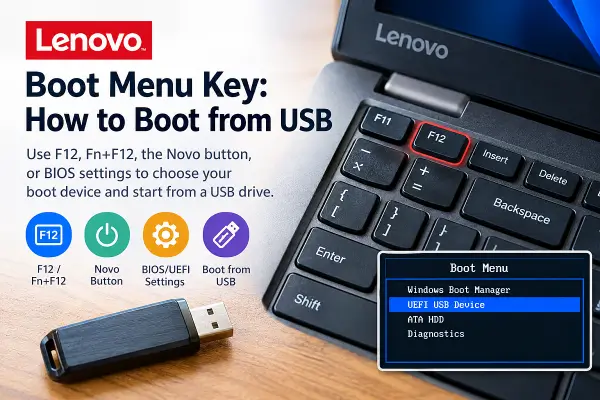
The Lenovo boot menu key is usually F12, allowing you to choose a USB flash drive, external drive, or another boot device without permanently changing your computer's startup settings. Depending on the model, you may need to press Fn + F12, press Enter first, or use the Lenovo Novo button.
This guide explains how to open the Lenovo boot menu, boot from USB, change the boot order in BIOS/UEFI, and troubleshoot a USB drive that does not appear in the startup menu. The instructions cover Lenovo ThinkPad, IdeaPad, Yoga, Legion, ThinkBook, and other Lenovo computers, although exact keys and menu options vary by model.
What Is the Lenovo Boot Menu Key?
On many Lenovo computers, F12 opens the boot device selection menu. This menu lets you choose which device to start from for the current boot without permanently changing the normal boot order.
- F12: Opens the boot menu on many Lenovo models.
- Fn + F12: May be required when function keys use multimedia mode.
- Enter: Opens the Startup Interrupt Menu on certain ThinkPad and ThinkBook models, where you can then select the boot menu.
- Novo button: Available on some Lenovo laptops and provides access to startup options.
These shortcuts are not universal. If they do not work, check the user guide for your exact Lenovo model.
How to Boot from USB on a Lenovo Laptop
Use these steps to start your Lenovo computer from a bootable USB drive. This is useful for installing Windows or Linux, running diagnostic tools, or launching a recovery environment.
- Insert your bootable USB flash drive into the computer. If possible, connect it directly rather than through a USB hub.
- Shut down the computer completely.
- Press the power button and immediately tap F12 repeatedly. If that does not work, try Fn + F12.
- When the boot menu appears, look for your USB drive. It may be listed by its brand name or as a UEFI USB device.
- Use the arrow keys to select the USB device and press Enter.
- Wait for the computer to start from the selected device.
This is normally a one-time boot selection. Afterward, the computer will usually return to its normal startup order the next time you restart it.
Tip: If the boot menu does not appear, start again and begin tapping the key immediately after pressing the power button. On some models, you must press Enter at the Lenovo logo before choosing F12 from the startup menu.
Lenovo Boot Menu Keys by Model
The following table summarizes common methods for accessing startup options. It is a general guide, not a definitive key chart for every model or generation.
| Lenovo series | Common method | Notes |
|---|---|---|
| ThinkPad | F12 or Fn + F12 | Some models display a startup menu after pressing Enter. |
| IdeaPad | F12 or Fn + F12 | Some models provide a Novo button or another startup method. |
| Yoga | F12 or Fn + F12 | Exact method depends on the model; some have a Novo button. |
| Legion | F12 or Fn + F12 | Check the model's startup instructions if the shortcut fails. |
| ThinkBook | F12 or Enter, then F12 | Some models use Enter to open the Startup Interrupt Menu. |
| Flex and V series | Often F12 or Fn + F12 | Confirm the shortcut in the model-specific manual. |
If none of these methods works, consult Lenovo Support and search for your exact product model. Some systems require a different startup key, and certain boot options may be disabled in firmware settings.
How to Use the Lenovo Novo Button
Some Lenovo laptops, particularly certain IdeaPad and Yoga models, include a Novo button that opens a special startup menu before Windows loads. The button may be recessed into the case and marked with a small curved arrow. Its location and availability vary by model.
- Shut down the laptop.
- Locate the Novo button using your model's user guide. It may be on the side of the laptop or near the power button.
- If it is recessed, press it carefully using the method recommended in the manual. Do not force anything into an unidentified opening.
- When the Novo menu appears, select Boot Menu or the equivalent boot-device option.
- Choose your USB drive and press Enter.
Depending on the model, the Novo menu may also offer BIOS/UEFI setup, diagnostics, or Windows recovery options. Some newer Lenovo systems do not have a physical Novo button.
For an example of the available options, see Lenovo's Novo Button menu documentation.
How to Change the Lenovo BIOS Boot Order
If you want your computer to try a particular drive first every time it starts, change the boot priority in BIOS/UEFI instead of using the one-time boot menu.
- Turn off or restart the computer.
- Enter BIOS/UEFI setup using the key specified for your model. Common methods include F1 or F2, sometimes combined with the Fn key. On some systems, the Novo menu provides access to setup.
- Open the Boot or Startup section.
- Find the boot priority or startup sequence list.
- Move the preferred boot device higher in the list, if the firmware provides that option.
- Save the changes and exit. On many Lenovo systems, F10 saves the settings, but follow the prompts displayed on your screen.
Menu names and key combinations vary by model. If you only need to boot from USB once, use the boot menu instead. Changing the permanent boot order is usually unnecessary.
Boot from USB Through Windows Recovery
If Windows still starts normally but you cannot catch the startup key, you may be able to select a USB device through Windows Recovery. The exact options depend on your Windows version, firmware, and available boot devices.
- Connect the bootable USB drive.
- In Windows 11, open Settings → System → Recovery.
- Under Advanced startup, select Restart now.
- After the recovery environment loads, select Use a device, if that option is available.
- Choose the USB or UEFI boot device.
If the USB device is not listed, use the startup boot menu or check the firmware and USB media. Windows Recovery cannot make an unbootable USB drive bootable.
Why Is My Lenovo Not Detecting the USB Drive?
If your USB flash drive does not appear in the Lenovo boot menu, the computer may not recognize it as bootable. Work through these checks before changing firmware settings.
1. Confirm the USB drive is actually bootable
Copying ISO files onto a flash drive is not usually enough. The USB must be created with a suitable bootable-media tool and configured for the target computer's boot mode. Tools such as Rufus or the official Windows installation media creation tool can help prepare bootable Windows media.
2. Try another USB port
Connect the drive directly to another USB port and restart the computer. Avoid hubs, docks, and adapters while troubleshooting. If possible, test the drive on another computer to confirm that it boots correctly.
3. Check whether USB boot is enabled
Open BIOS/UEFI setup and look for boot-device or USB boot settings. Some models allow external boot devices to be disabled. The location and wording of these settings vary, so use the documentation for your particular Lenovo computer.
4. Check UEFI compatibility
Modern Lenovo computers generally use UEFI boot. A USB drive created for a different boot mode or with an incompatible partition layout may not appear as a selectable device. Re-create the media using settings appropriate for the target computer and operating system.
5. Check Secure Boot only if necessary
Secure Boot helps prevent unauthorized boot software from loading. Many current Windows installation drives and supported Linux distributions work with Secure Boot enabled. Do not disable it automatically just because a USB drive is missing.
If the USB appears but fails to start, check whether the boot media supports Secure Boot and whether the system displays a specific security or signature error. Change Secure Boot settings only when needed for trusted media, and restore the original setting afterward if appropriate.
6. Restore the normal boot settings if needed
If you have changed several BIOS settings while troubleshooting, review your changes before saving. Avoid loading firmware defaults unless you understand the consequences for your system, especially if the computer uses disk encryption or custom storage settings.
Frequently Asked Questions
What key opens the boot menu on a Lenovo laptop?
F12 is the most common Lenovo boot menu key. Some models require Fn + F12, pressing Enter first, or using a Novo button. Check your exact model's documentation if these methods do not work.
How do I boot a Lenovo laptop from a USB drive?
Insert a bootable USB drive, shut down the laptop, power it on, and repeatedly tap F12 or Fn + F12. Select the USB device from the boot menu and press Enter.
Why does F12 not open the Lenovo boot menu?
You may be using the wrong key combination, missing the startup timing, or using a model that requires a different method. Try Fn + F12 or Enter at the Lenovo logo, check for a Novo button, and consult the model's user guide.
How do I permanently change the boot drive on a Lenovo?
Enter BIOS/UEFI setup, open the Boot or Startup section, change the boot priority, and save your changes. The available settings and setup key depend on the model.
Why is my USB drive missing from the Lenovo boot menu?
The drive may not be bootable, the USB port may not recognize it during startup, USB boot may be disabled, or the media may be incompatible with the computer's boot mode. Test another port and re-create the bootable media before changing security settings.
Do I need to disable Secure Boot to boot from USB?
Not usually. Many modern Windows installation drives and supported Linux distributions work with Secure Boot enabled. Disable it only when trusted boot media requires it and you understand the security implications.
Does selecting a USB drive change the normal boot order?
No. Selecting a USB drive from the one-time boot menu normally affects only that startup. To change the device the computer tries first on future startups, change the boot priority in BIOS/UEFI.
Conclusion
The Lenovo boot menu key is usually F12, although some computers require Fn + F12, Enter at startup, or the Novo button. Use the one-time boot menu to start from a USB drive without permanently changing startup settings. If you want a different drive to start first every time, change the boot priority in BIOS/UEFI instead.
If your USB drive does not appear, verify that it is bootable, try another port, and check the firmware settings for your exact model before changing Secure Boot or other security options.