
Cannot Delete File: Cannot Read From Source File or Disk – If you have ever tried to delete a file in Windows and received an error message saying the file cannot be deleted because it is being used by another program, you are definitely not alone.
This is a common Windows error that occurs when a file or folder is locked by a running process. When this happens, Windows prevents the file from being deleted to avoid corruption or system instability.
Fortunately, there are several ways to unlock and remove these files.
Error Deleting File or Folder
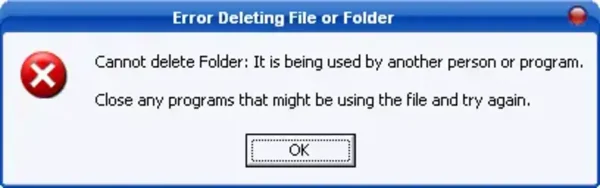
Common Error Deleting File Messages
- Cannot delete file: Access is denied
- There has been a sharing violation
- The source or destination file may be in use
- The file is in use by another program or user
- Make sure the disk is not full or write-protected and that the file is not currently in use
These errors typically appear when a program, background process, or Windows service is currently using the file.
Method 1: Use Unlocker (Classic Tool)
One of the most well known utilities for deleting locked files is a small application called Unlocker. It scans the system for processes that are currently locking a file and allows you to release them so the file can be removed.
- Download Unlocker and install the program.
- Right click the file or folder you want to delete and choose Unlocker from the context menu.
- Select Delete from the action list and click OK.
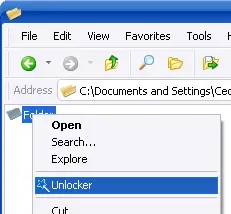
Using Unlocker to delete locked files or folders
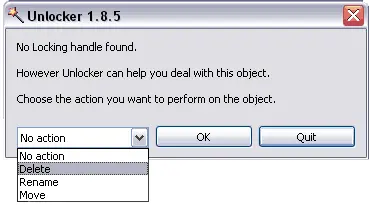
Deleting the locked file
Method 2: Restart Windows Explorer
Sometimes the file is locked by Windows Explorer itself. Restarting it can release the file lock.
- Press Ctrl + Shift + Esc to open Task Manager.
- Find Windows Explorer in the list.
- Right click it and select Restart.
- Try deleting the file again.
Method 3: Delete the File Using Command Prompt
If Windows Explorer cannot delete the file, you can sometimes remove it using the command line.
- Open Command Prompt as Administrator.
- Navigate to the folder containing the file.
- Use the following command:
del filename.ext
This method can sometimes bypass file locking issues.
Method 4: Restart Your Computer
If a background process is locking the file, restarting your system will usually release the lock and allow the file to be deleted normally.
Final Thoughts
The "Cannot delete file" error is usually caused by a process that is currently using the file. Tools like Unlocker can identify and release the process, while restarting Windows Explorer or using the command line can also resolve the issue.
Once the file lock is removed, you should be able to delete the file or folder without further problems.