
How to Quickly Check a Download for Viruses and Malware? We often download files from the internet that look legitimate but still feel a bit suspicious. While most computers have antivirus or anti-malware software installed, modern malware evolves quickly. In many cases, new threats spread faster than antivirus software can update its definitions, leaving a short window where your system may be vulnerable.
Fortunately, there are free and reliable ways to scan a download for viruses before opening it. Online virus scanners let you upload files and check them against dozens of antivirus engines at once. This greatly improves your chances of catching malware that a single desktop antivirus might miss.
Why Use Online Virus Scanners?
- Multi-engine scanning: Services like VirusTotal and Jotti scan files using 50+ antivirus engines simultaneously.
- Second opinion: Even if your local antivirus says a file is clean, an online scan may detect hidden threats.
- No installation required: Everything runs directly in your browser.
- Fast results: Most scans complete in under a minute.
Recommended Online Virus and Malware Scanners
1. Scan a Download with VirusTotal
VirusTotal is one of the most trusted online virus scanning services available. It analyzes files using dozens of antivirus engines and security tools.
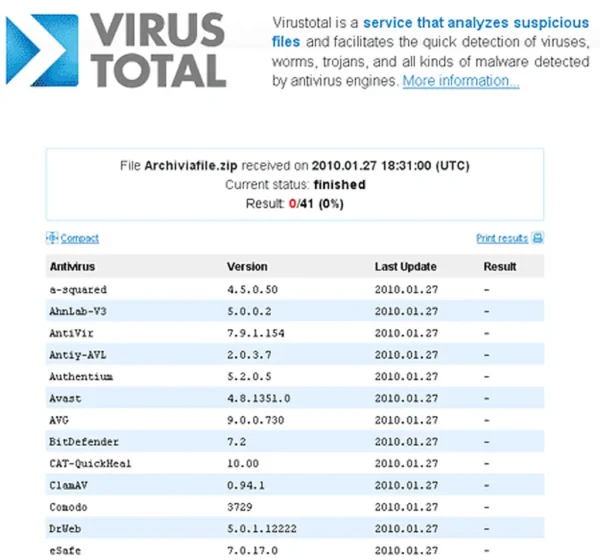
How to Use VirusTotal
- Go to the VirusTotal website.
- Click the "Choose file" button and select the downloaded file.
- Wait while VirusTotal scans the file using multiple antivirus engines.
- Review the results and look for any detections or warnings.
2. Scan a File with Jotti's Malware Scanner
Jotti is another free online malware scanner that checks files against several well-known antivirus products. It is lightweight and easy to use.
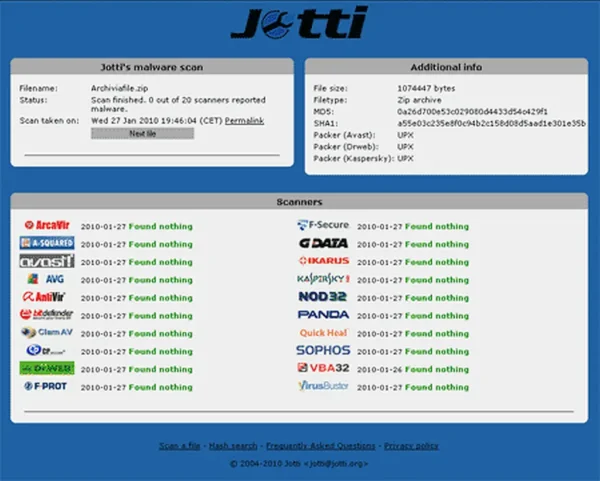
How to Use Jotti
- Visit the Jotti malware scan website.
- Click "Choose file" and select your downloaded file.
- Wait for Jotti to scan the file and display the results.
Bonus: Verify File Integrity Using Hash Values
Many legitimate software developers publish checksum values such as SHA-256 or MD5 hashes. Comparing hashes helps verify that your download has not been altered or corrupted.
- Windows: Open Command Prompt and run
CertUtil -hashfile filename.exe SHA256 - macOS or Linux: Open Terminal and run
shasum -a 256 filename
If the hash value does not match the one provided by the developer, do not run the file.
Final Thoughts
Checking a download for viruses before opening it is one of the simplest ways to avoid malware infections. Even trusted websites can occasionally distribute compromised files. Using online virus scanners like VirusTotal or Jotti gives you an extra layer of protection and peace of mind.
Still Not Sure About a File?
If scan results are unclear or conflicting, the safest choice is not to run the file. Advanced users can analyze suspicious downloads in a virtual machine or sandbox environment. When in doubt, delete it.