
How to Reset Photoshop Preferences and Settings to Default: During experimentation, you might find yourself changing Photoshop's default settings only to forget what the original configuration was later. Sometimes Photoshop may also begin behaving strangely, crashing unexpectedly, displaying missing panels, or refusing to save preferences correctly.
Fortunately, resetting Photoshop preferences back to their factory defaults often fixes these issues.
The good news is that there are several simple ways to reset all of your Photoshop settings and preferences. These methods work on older versions such as Photoshop CS2, CS3, CS4, CS5, and CS6, as well as the latest versions of Adobe Photoshop in Creative Cloud.
4 Methods to Reset Photoshop Preferences
Method 1: Reset Photoshop Preferences During Launch
This is the quickest and most reliable method.
- Completely close Photoshop.
- Press and hold Ctrl + Alt + Shift on Windows or Command + Option + Shift on Mac.
- While holding the keys, launch Photoshop.
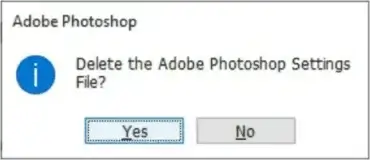
- A message will appear asking if you want to delete the Adobe Photoshop Settings file.
- Click Yes.
Photoshop will start with a fresh set of default preferences.
Tip: On Windows, holding the keys while clicking the Photoshop desktop shortcut usually works better than launching it from the Start menu.
Method 2: Use "Reset Preferences on Quit"
Newer versions of Photoshop include a built-in reset option.
- Open Photoshop.
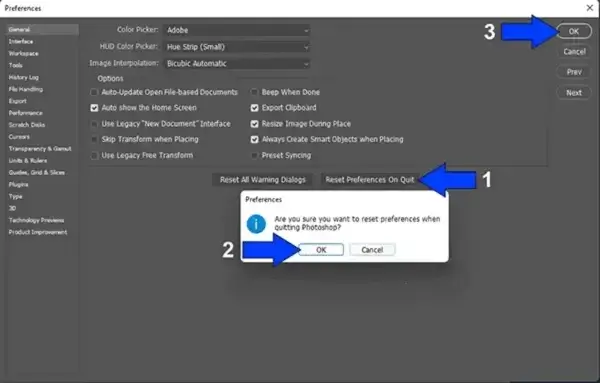
- Go to Edit > Preferences > General on Windows or Photoshop > Settings > General on macOS.
- Click Reset Preferences on Quit.
- Confirm the prompt.
- Close Photoshop.
- Launch Photoshop again.
Your preferences will now be restored to their default settings.
Method 3: Reset Photoshop Using a Shortcut
If Photoshop won't open properly, you can still force a reset.
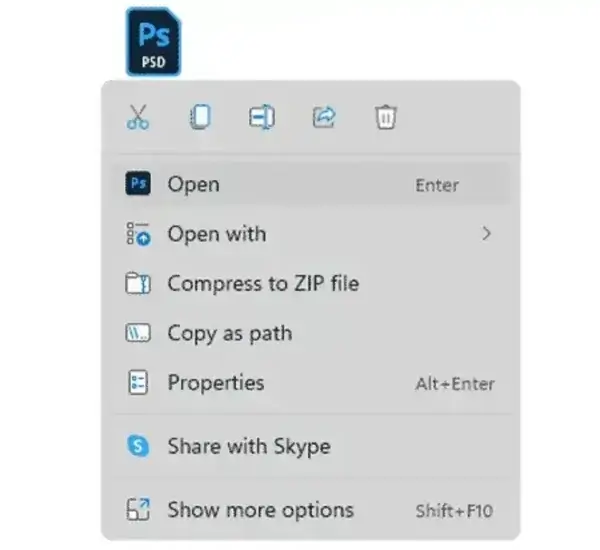
- Hold Ctrl + Alt + Shift (Windows) or Command + Option + Shift (Mac).
- Right-click a Photoshop shortcut or image file and select Open.
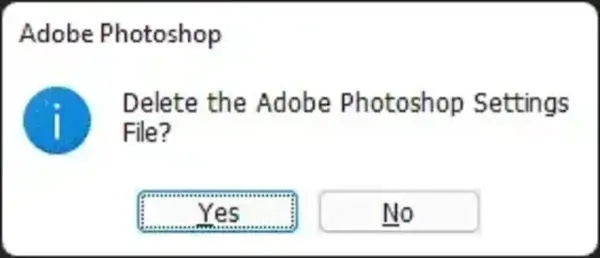
- When prompted to delete the Adobe Photoshop Settings file, click Yes.
Method 4: Manually Delete the Photoshop Preferences Folder
If the previous methods fail, you can manually remove Photoshop's preferences folder.
Important: Make sure Photoshop is completely closed first.
Windows
C:\Users[YourUser]\AppData\Roaming\Adobe\Adobe Photoshop [Version]\Adobe Photoshop [Version] Settings
macOS
~/Library/Preferences/Adobe Photoshop [Version] Settings
Delete or rename the folder.
When Photoshop starts again, it will automatically create a brand-new preferences folder using default settings.
Tip: Rename the old folder instead of deleting it. This gives you an easy way to restore your previous settings if necessary.
What Gets Reset?
Resetting Photoshop preferences can remove:
- Custom workspaces
- Keyboard shortcuts
- Brush presets
- Actions
- Tool settings
- Color settings
- Performance preferences
- Recently opened file lists
If you've spent time customizing Photoshop, it's a good idea to export or back up important presets first.
Why Reset Photoshop Preferences?
Resetting Photoshop can solve many common problems, including:
- Photoshop crashes or freezes
- Tools or panels disappear
- Performance suddenly becomes slow
- Strange behavior after an update
- Corrupted settings files
- Preferences that won't save properly
- You simply want to start with a clean slate
In my experience, resetting preferences is often one of the first troubleshooting steps worth trying when Photoshop starts behaving unpredictably.
Frequently Asked Questions
Will resetting Photoshop delete my projects?
No. Resetting preferences only restores Photoshop's settings. Your PSD files, images, and documents remain untouched.
Will I lose my brushes and actions?
Possibly. Custom presets may be removed depending on how they were installed. Exporting or backing them up beforehand is recommended.
Can resetting Photoshop fix crashes?
Yes. Corrupted preference files are a common cause of crashes, missing panels, and strange behavior.
How do I back up Photoshop preferences?
Simply copy the Photoshop Settings folder to another location before deleting or resetting it.
Final Note
I personally use Adobe Photoshop for most of my graphic work on Windows. However, when working in Linux I often use GIMP (GNU Image Manipulation Program), an excellent free and open-source alternative that is also available for Windows and macOS.
While GIMP doesn't replace every advanced Photoshop feature, it's a powerful editor worth considering if you're looking for a capable image editor without an ongoing subscription.