Force Windows to See a USB Flash Drive as Local Disk: Most USB flash drives are detected by Windows 10 and Windows 11 as removable disks. This is normal behavior because the USB controller firmware tells Windows how the device should be identified. However, some advanced tasks, such as creating multiple partitions, running persistent Linux installations, or using portable operating systems, work better when a USB drive behaves more like a local fixed disk.
Can Windows Detect a USB Flash Drive as a Local Disk?
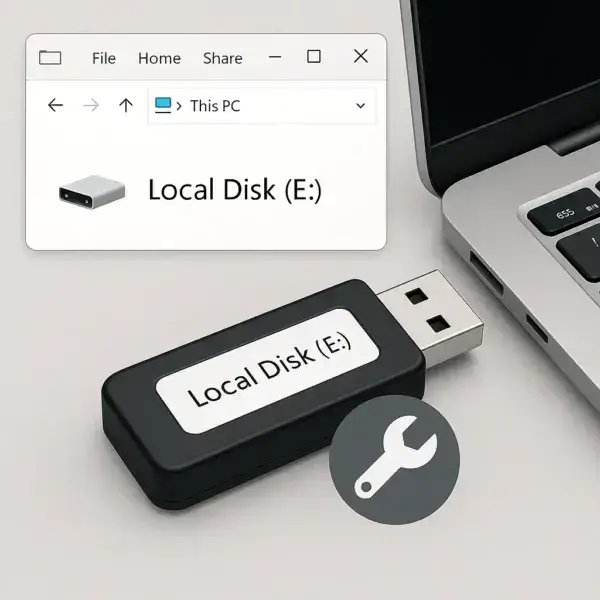
Yes, but with limitations. Windows does not include a simple setting that converts a removable USB flash drive into a fixed disk. The classification is controlled primarily by the USB device firmware through something called the Removable Media Bit (RMB).
On older versions of Windows, users sometimes relied on modified drivers to bypass removable media limitations. Those methods are outdated and are generally unnecessary today.
Instead, Windows 10 and Windows 11 users can use safer methods to achieve similar results:
- Create and manage multiple partitions on many USB drives
- Use bootable USB tools with persistent storage
- Modify the USB controller firmware (advanced users only)
How to Make a USB Flash Drive Work Like a Local Disk in Windows 10 and 11
Method 1: Create Multiple Partitions on a USB Flash Drive
Modern versions of Windows support multiple partitions on many removable USB devices. This allows you to organize a flash drive more like an internal hard drive.
Examples of why you may want multiple partitions:
- Create a boot partition and a storage partition
- Separate operating system files from personal data
- Create a multi-purpose rescue or utility USB drive
- Store files alongside a portable operating system
How to Create Multiple USB Partitions Using Windows Disk Management
- Connect your USB flash drive to your computer.
- Right click the Start Menu and select Disk Management.
- Back up any important files because the following steps may erase existing data.
- Right click the USB drive volume and choose Delete Volume if needed.
- Right click the unallocated space and select New Simple Volume.
- Create your first partition and assign a drive letter.
- Repeat the process with remaining unallocated space to create additional partitions.
Note: Windows 10 version 1703 and newer provide improved support for multiple partitions on removable media. However, some older utilities and operating systems may still require a drive that reports itself as a fixed disk.
Method 2: Use Universal USB Installer for Persistent Bootable USB Drives
Universal USB Installer (UUI) is a free tool for creating bootable USB drives with persistent storage.
While UUI does not change a USB drive from removable to fixed, it can create portable operating system environments that behave similarly to a portable hard drive.
This is useful for:
- Running Linux from a USB drive
- Saving files and settings between reboots
- Creating portable troubleshooting tools
- Testing operating systems without installing them
How to Create a Persistent USB Drive Using UUI
- Download and run Universal USB Installer.
- Select your USB drive from the device list.
- Choose your preferred Linux distribution or ISO file.
- Select a persistence size if available.
- Click Create and allow the process to complete.
Note: Persistent USB installations provide many benefits of a local disk, but the USB device itself will still report as removable to Windows.
Need to Restore a USB Drive After Partitioning?
If you created multiple partitions, installed a bootable operating system, or experimented with advanced USB tools, you can restore the drive back to normal.
Options include:
SD Card Formatter - A simple graphical tool for restoring USB flash drives and memory cards.
Windows DiskPart - A built-in command line utility for completely cleaning and reformatting a USB drive.
How to Clean and Reformat a USB Drive Using DiskPart
Open Command Prompt or Windows Terminal as Administrator.
Enter the following commands one line at a time.
Replace X with the correct disk number for your USB drive.
diskpart
list disk
select disk X
clean
create partition primary
format fs=ntfs quick
assign
exit
Warning: The clean command permanently removes all partitions and data from the selected disk. Double check that you selected the correct drive.
Advanced Method: Convert a USB Flash Drive to Fixed Disk Using RMB
What Is the Removable Media Bit (RMB)?
The Removable Media Bit (RMB) is a firmware setting inside many USB flash drive controllers. It tells Windows whether the device should be identified as removable media or as a fixed local disk.
Changing this setting can allow some USB drives to appear as a local disk in Windows.
This can help when you need to:
- Partition a USB drive like an internal hard drive
- Use software that requires fixed disk detection
- Create certain portable Windows or Linux installations
- Remove removable media limitations
Warning: Changing USB controller firmware is an advanced procedure. Using the wrong firmware tool can permanently damage the flash drive. Only attempt this on test drives or hardware you can afford to lose.
Step 1: Identify Your USB Flash Drive Controller
Before changing firmware settings, you must identify the USB controller inside your flash drive.
Tools such as ChipGenius can display controller information.
Look for:
- Controller Vendor
- Controller Part Number
- Flash memory information
Example:
Controller Vendor: Phison
Controller Part-Number: PS2251-07 (2307)
Step 2: Find the Correct USB Mass Production Tool
After identifying the controller, you need the matching firmware utility.
Possible sources include:
Examples:
- Phison controllers may use MPALL tools
- Silicon Motion controllers may use SMI MPTool
- Alcor controllers may use AlcorMP utilities
Only use tools that exactly match your controller model.
Step 3: Change the USB Drive From Removable to Fixed
The exact options vary depending on the controller utility, but the general process is:
- Run the Mass Production Tool as Administrator.
- Connect your USB flash drive.
- Open the advanced settings.
- Locate an option such as Removable Disk or Fixed Disk.
- Change the setting to Fixed Disk.
- Apply the firmware update.
After successful firmware modification, Windows may identify the USB flash drive as a local fixed disk.
Can You Reverse an RMB Change?
Sometimes, but not always.
Many firmware tools permanently rewrite controller settings. Unless you saved the original firmware configuration and the tool supports restoring it, the change may not be reversible.
For this reason, firmware modification should only be performed on spare USB drives.
Frequently Asked Questions
How do I make Windows see a USB drive as a local disk?
Windows cannot normally be forced to convert a removable USB flash drive into a fixed disk through a simple setting. The safest methods are creating multiple partitions, using persistent bootable USB tools, or using a USB drive that already reports itself as a fixed disk. Advanced users may be able to change the Removable Media Bit (RMB) in compatible USB controller firmware.
Why does Windows show my USB flash drive as removable?
Windows identifies most USB flash drives as removable because the USB controller firmware reports the device type through the Removable Media Bit (RMB). This information comes from the hardware and cannot normally be changed through Windows settings.
Can I make any USB flash drive appear as a local disk?
No. The ability to convert a USB flash drive into a fixed disk depends on the USB controller and firmware. Many modern flash drives cannot be modified without specialized manufacturer tools.
Can I create multiple partitions on a USB flash drive?
Yes. Windows 10 and Windows 11 support multiple partitions on many USB drives. However, some older software and operating systems may still require a USB device that reports itself as a fixed disk.
Can I install Windows or Linux on a USB flash drive?
Yes. Bootable USB tools can create portable Windows or Linux installations. Persistent storage allows many Linux environments to save files and settings between restarts.
Is changing the USB Removable Media Bit safe?
Changing the RMB setting is an advanced procedure that can permanently damage a flash drive if the wrong firmware tool is used. Only attempt this with compatible hardware and a USB drive that can be replaced if something goes wrong.
Conclusion: Making Windows Treat USB as a Local Disk
Although Windows does not provide a simple switch to convert a USB flash drive into a fixed disk, there are several ways to achieve similar results.
For most users, creating multiple partitions or using a persistent bootable USB solution is the safest approach.
Advanced users can explore changing the Removable Media Bit through USB controller firmware tools, but this carries significant risk and should only be attempted with compatible hardware.
Whether you are creating a portable operating system, a recovery drive, or a multi-purpose USB toolkit, understanding how Windows identifies removable media will help you choose the right solution.