
Resetting Adobe Photoshop preferences can help troubleshoot crashes, missing panels, unusual tool behavior, or settings that no longer work as expected. Photoshop includes built-in reset options for Windows and macOS, plus a manual method for situations where the application will not start normally.
Before resetting, back up your Photoshop settings and custom presets. A reset can remove personal workspace and preference changes, so make a copy of anything you may want to restore.
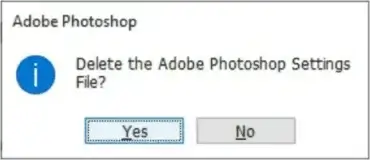
Method 1: Reset Photoshop preferences while launching
This keyboard shortcut is a quick way to restore Photoshop's preferences:
- Close Photoshop completely.
- On Windows, press and hold Alt + Ctrl + Shift. On macOS, press and hold Option + Command + Shift.
- While holding the keys, launch Photoshop.
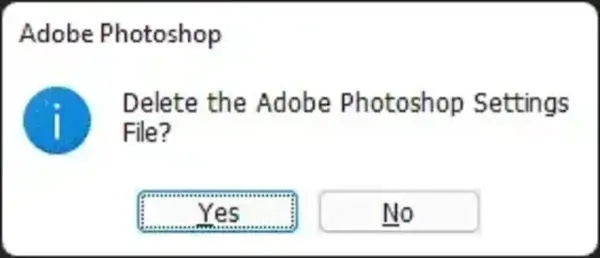
- When Photoshop asks whether to delete the Adobe Photoshop Settings file, choose Yes.
Photoshop will create a fresh set of preference files when it starts.
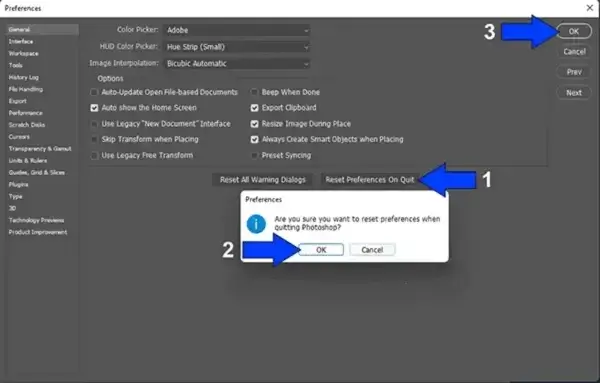
Method 2: Use Reset Preferences on Quit
If Photoshop opens, use its built-in reset option:
- Open Photoshop.
- On Windows, select Edit > Preferences > General. On macOS, select Photoshop > Settings > General.
- Select Reset Preferences On Quit.
- Confirm the prompt and select OK.
- Quit Photoshop completely, then launch it again.
Photoshop will recreate its preference settings with default values.
Method 3: Manually reset the Photoshop preferences folder
Use this method if Photoshop will not open or the built-in reset options do not resolve the problem. Close Photoshop before continuing.
Windows: Open File Explorer and go to the following folder, replacing <username> and <version> with your Windows account name and Photoshop version:
C:\Users\<username>\AppData\Roaming\Adobe\Adobe Photoshop <version>\Adobe Photoshop <version> SettingsThe AppData folder is hidden by default. You can enter the path in File Explorer's address bar.
macOS: In Finder, open the Go menu while holding Option, choose Library, then open:
~/Library/Preferences/Adobe Photoshop <version> SettingsRename the Photoshop Settings folder instead of deleting it. For example, add -backup to its name. Launch Photoshop and it will create a new preferences folder. If you need to restore your old settings, close Photoshop and move the backup folder back into place.
What does resetting Photoshop remove?
Resetting preferences restores many application settings, which can include workspace arrangements, tool behavior, display options, performance settings, and other preferences. The exact items affected depend on the reset method and Photoshop version.
Some custom presets and settings may be stored separately. Back up important brushes, actions, workspaces, keyboard shortcuts, color settings, and other custom resources before resetting. Adobe provides a guide to backing up and restoring Photoshop preferences.
Why reset Photoshop preferences?
A preference reset may help when Photoshop crashes, freezes, displays missing panels, behaves unexpectedly after an update, or fails to save settings correctly. It is a troubleshooting step, not a guaranteed fix for every performance or stability problem.
Frequently asked questions
Will resetting Photoshop delete my projects?
No. Resetting preferences does not delete your PSD files, photos, or other documents. It changes Photoshop's settings.
Will I lose my brushes and actions?
Some custom presets may be affected, depending on where they are stored and which reset method you use. Back them up before resetting.
Can resetting Photoshop fix crashes?
It can help if corrupted preferences are causing the problem. If Photoshop still crashes afterward, check plug-in compatibility, GPU settings, available disk space, and Adobe's troubleshooting guidance.
Where can I find Adobe's current instructions?
See Adobe's official guide to resetting Photoshop preferences. Menu labels and available options can vary by version.
Final note
I personally use Adobe Photoshop for most of my graphic work on Windows. When working in Linux, I also use GIMP, a capable free and open-source image editor available for Windows, macOS, and Linux.