
How to Restore GRUB2 After Installing Windows 11 or Windows 10. GRUB2 (Grand Unified Bootloader) is the default bootloader used by Ubuntu and many other Linux distributions. If you install Windows after Linux, Windows will overwrite the bootloader and your system will boot straight into Windows with no option to load Linux.
The good news is that restoring GRUB2 is usually quick and painless, as long as your Linux partition still exists.
Important: This guide assumes your Linux installation was not deleted. If Linux was fully overwritten by Windows, there is nothing for GRUB to recover.
Why Windows Breaks GRUB
Windows installers always assume they are the only operating system. During installation, Windows replaces the existing bootloader with its own, regardless of whether you are using legacy BIOS or modern UEFI.
On modern systems, this typically affects the EFI System Partition (ESP), not the Linux partition itself.
What You Will Need
- A Linux Live USB (Ubuntu, Mint, Fedora, etc.)
- Access to a terminal
- Your Linux partition still intact
How to Restore GRUB2 After a Windows Install
The following steps use an Ubuntu Live USB to restore Grub, but the process is nearly identical on most distributions.
- Boot your computer from an Ubuntu Live USB.
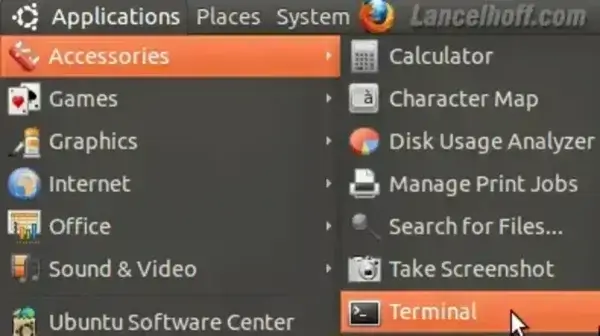
- Once the desktop loads, open a terminal using Ctrl + Alt + T.
- Gain root access:
sudo su - List all disks and partitions:
fdisk -l
- Identify your Linux root partition. It will typically look like /dev/sda2 or /dev/nvme0n1p2.

- Mount the Linux partition:
mount /dev/sdXN /mntReplace sdXN with your actual device and partition.
- Bind required system directories:
mount --bind /dev /mnt/dev mount --bind /proc /mnt/proc mount --bind /sys /mnt/sys - Copy DNS configuration:
cp /etc/resolv.conf /mnt/etc/resolv.conf - Chroot into your Linux system:
chroot /mnt
- Reinstall GRUB2:
grub-install --recheck /dev/sdXReplace sdX with the disk, not the partition.
- Reboot:
reboot
Remove the Live USB before the system boots.
GRUB Loads but Windows Is Missing
On modern Linux systems, Windows detection may be disabled by default for security reasons.
Enable Windows Detection in GRUB
- Boot into your Linux system.
- Open a terminal and edit the GRUB config:
sudo nano /etc/default/grub - Add or modify the following line:
GRUB_DISABLE_OS_PROBER=false - Save and exit, then update GRUB:
sudo update-grub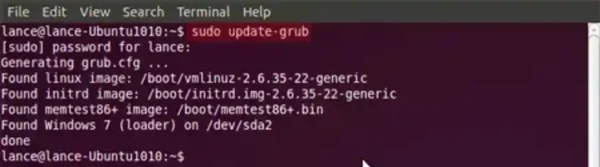
If Windows is detected correctly, you will see it listed during the update process.
UEFI Systems and Windows 11 Notes
- Windows 11 always uses UEFI
- Secure Boot may need to be disabled temporarily
- GRUB installs to the EFI System Partition, not the Linux partition
If Secure Boot is enabled and GRUB fails to load, disable Secure Boot in your firmware settings and repeat the process.
Final Thoughts
Windows breaking GRUB is common and expected behavior, but it is not permanent. As long as your Linux partition still exists, GRUB2 can be restored in minutes.
Once restored, GRUB will automatically manage both Windows and Linux, giving you a clean and reliable dual boot setup.