WordPress Tutorials

WordPress Tutorials: Simple Solutions for mastering WordPress. Learn to customize, and optimize your website with ease, from basic to advanced.

Fix the PHP upload_max_filesize Error in WordPress

upload max file size php.ini

If WordPress displays “The uploaded file exceeds the upload_max_filesize directive in php.ini”, PHP is rejecting the upload because the file is larger than the configured limit. The fix is to change the PHP upload settings used by your website, then check any additional limits imposed by WordPress, your web server, or your hosting provider.

The correct method depends on your hosting setup. Use your host's PHP settings editor when available; otherwise, ask your hosting provider which configuration file applies to your domain. Editing a theme's functions.php file will not reliably change PHP upload limits.

phpMyAdmin SQL Search and Replace: Safer WordPress Updates

SQL Search and Replace

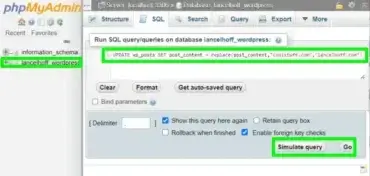
phpMyAdmin lets you run SQL queries directly against a MySQL or MariaDB database. One common use is finding and replacing a URL or text string in a specific table column. This can be fast, but a broad UPDATE query changes data immediately, so first preview the matches and create a verified database backup.

This guide shows the basic SQL REPLACE() function, a safer preview-first workflow, and an example for WordPress post content. For a whole-site WordPress migration, prefer WP-CLI's serialized-data-aware search-replace command or a reputable migration tool rather than running blind replacements across arbitrary tables.

Display More Recent Posts in the WordPress Sidebar

Want to show more than 15 recent posts in your WordPress sidebar? The old 15-post limit described in this tutorial applied to earlier versions of WordPress. Current WordPress versions let you set the number of posts in the built-in Recent Posts widget, so check the widget settings first. If you need to enforce a specific number or the setting is being overridden, you can use a small filter in a site-specific plugin or a child theme instead of editing WordPress core files.

This guide covers the current method, a code-based alternative, and the historical core-file edit for reference. Do not edit files inside wp-includes. WordPress updates can overwrite those changes, and modifying core files makes maintenance and troubleshooting harder.

Set the number of recent posts in WordPress

  1. Open your WordPress dashboard and go to Appearance → Widgets. Depending on your theme and WordPress version, you may manage widgets in the Site Editor or Customizer instead.
  2. Open the sidebar or widget area containing Recent Posts.
  3. Find the Number of posts to show setting and enter the number you want, such as 30.
  4. Save or update the widget, then visit the front end to confirm the list displays as expected.

If the widget does not offer the setting you need, or another plugin or custom function is changing the query, use the filter below.

Use a WordPress filter to show 30 recent posts

WordPress provides the widget_posts_args filter for changing the query used by the built-in Recent Posts widget. Add the following code to your child theme's functions.php file or, preferably, a small site-specific plugin. Do not add it to a parent theme or a WordPress core file.

/**
 * Set the built-in Recent Posts widget to show 30 posts.
 */
function lancelhoff_recent_posts_widget_args( $args, $instance ) {
    $args['posts_per_page'] = 30;

    return $args;
}
add_filter( 'widget_posts_args', 'lancelhoff_recent_posts_widget_args', 10, 2 );

Important: This filter applies to every built-in Recent Posts widget on the site and forces each one to show 30 posts, regardless of its individual number setting. Change 30 to your preferred count. If you only want to change one widget, use a condition based on that widget's settings or use a dedicated custom widget/query instead.

Where should the code go?

  • Site-specific plugin: Best when the behavior should remain active if you change themes.
  • Child theme functions.php: Suitable if the change belongs with your child theme. Back up the file before editing.
  • Parent theme or WordPress core: Avoid. Theme updates can overwrite parent-theme changes, and WordPress updates replace core files.

Historical method: editing a WordPress core file

In the original WordPress 2.8-era method, the steps were to back up wp-includes/default-widgets.php, open it in a text editor, find the Recent Posts widget code that capped $number at 15, change the cap to 30, and update the related “at most 15” help text to “at most 30.” The edited file was then uploaded to replace the core file on the server.

This is historical information, not a recommendation. Do not apply those steps to a current WordPress installation. The file and implementation have changed, core-file edits are unsupported, and updates can overwrite them. Use the widget setting or the widget_posts_args filter above instead.

Frequently asked questions

Can WordPress display more than 15 recent posts?

Yes. The old 15-post limit is outdated. Check the Recent Posts widget's number setting first. If you need to force a specific count, the widget_posts_args filter can change the query.

Will editing a WordPress core file survive an update?

No. WordPress updates can replace core files and remove your changes. Editing core files can also make future updates and troubleshooting more difficult.

Does the filter change every Recent Posts widget?

Yes. The example above changes the query for every built-in Recent Posts widget. If you need different counts for different widget instances, add conditional logic or use a custom widget/query.

Where can I learn more about the filter?

The official WordPress Developer Resources document the widget_posts_args filter and show how it is used by the Recent Posts widget. See the Recent Posts widget source documentation.

How to Convert YouTube Shorts into Normal Videos

convert youtube shorts into normal videos

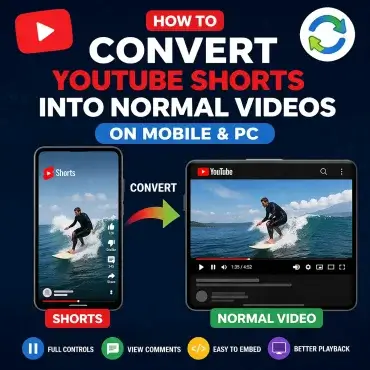
How to Convert YouTube Shorts into Normal Videos (Mobile, PC & WordPress): Turning YouTube Shorts into regular videos is surprisingly easy. Shorts have a different URL, which sometimes makes them harder to share or embed like normal YouTube videos. But there's a quick way around this-a simple URL change does the trick.

Here's how you can do it. I'll walk you through the steps for mobile, PC, and even show you how to automate the process if you're using WordPress.

Disable WordPress Plugin Update Notifications

disable wordpress plugin update notifications

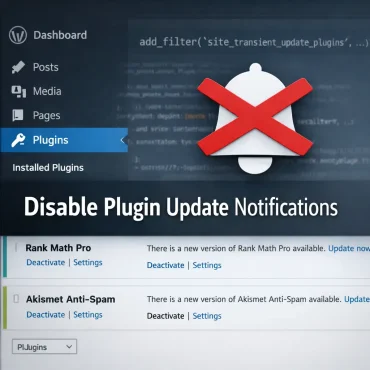
Are you looking to disable WordPress plugin update notifications? Want to hide update notices for a specific plugin or remove plugin update notifications entirely? This simple solution explains how to disable WordPress plugin update notifications safely using code, including single plugins, multiple plugins, or disabling them globally.

This method works by filtering the WordPress update transient and is commonly used for premium plugins, custom builds, staging environments, or controlled update workflows.

Remove Comments are Closed text from posts

I can't recall how many times I have been asked by numerous people how to remove the "Comments are Closed" text from the bottom of WordPress posts. So, I have decided to write a quick tutorial on the subject. The following tutorial explains how to remove the Comment option and Comments are Closed text from being made available on your posts. One common request is how to remove specific comments from text that might clutter the appearance of your site. By following the steps laid out in this tutorial, you'll not only streamline your post's design but also enhance the user experience. This will allow your content to shine without unnecessary distractions.

Add WordPress Sidebar in Posts and Pages

I've always enjoyed using WordPress blogging software from the day I first installed it. It's simple to work with, is well structured and contains an easy to navigate admin menu. WordPress includes a default template called Kubrick that contains a great simple base design to work with.

Adding AdSense Ads between WordPress posts

In the following tutorial, I explain how to place Google AdSense ads between your WordPress posts. This is similar to the tutorial on How to add AdSense Ads between posts on category pages, with the exception that this example places ads on your Blog's Main index or Home page. In addition to WordPress, you can also increase your advertising revenue by implementing Adsense into phpBB forum posts. This method allows you to strategically position ads within the discussions, enhancing visibility without disrupting the user experience. By following similar steps, forum owners can effectively monetize their platforms just like blog operators do.

How to Limit or Disable WordPress Post Revisions

Disable WordPress post revisions

How to Limit or Disable WordPress Post Revisions: WordPress post revisions are designed to protect your work by saving past versions of every post and page. In theory, this is a great safety net. In practice, especially on long running sites, revisions can quietly grow into thousands of extra database rows, bloating backups, slowing queries, and making your admin experience feel cluttered. One effective way to manage this issue is to delete post revisions in WordPress, reducing unnecessary clutter and optimizing your database. This can help speed up your site's performance and streamline data management. Regular maintenance and careful configuration can ensure that you're benefiting from WordPress's features without experiencing the downsides of excessive revisions.

How to Display More Than 15 Recent Posts in WordPress

How to Display More Than 15 Recent Posts in WordPress: If you want to display more than 15 recent posts in WordPress, the good news is that current versions of WordPress no longer require the old 15 post limit workaround. The built in Recent Posts widget now allows you to enter the number of posts you want to display. If you want to show 20, 25, or another number of recent posts, you can usually set that directly in the widget settings.

If you need to force the Recent Posts widget to display a specific number of posts, you can also use a WordPress filter instead of modifying WordPress core files.

This tutorial covers both approaches:

  • Modern method: Use the widget_posts_args filter.
  • Simple method: Set the number directly in the Recent Posts widget.
  • Legacy method: The original WordPress 2.8-era technique for changing the old 15-post limit in wp-includes.

How to change the WordPress admin username

Changing the default WordPress admin login username: By default, WordPress installations use the admin username. The admin account provides access to the WordPress backend and all characteristics of the installation. Since this is well known, it can become a security vulnerability. A hacker can easily perform a brute force attack on the account to retrieve the WordPress admin login password. To enhance security, it’s crucial to change wordpress username securely and ensure that it is not easily guessable. Implementing strong, unique usernames alongside complex passwords can significantly decrease the risk of unauthorized access. Additionally, utilizing two-factor authentication provides an extra layer of protection for your WordPress site.

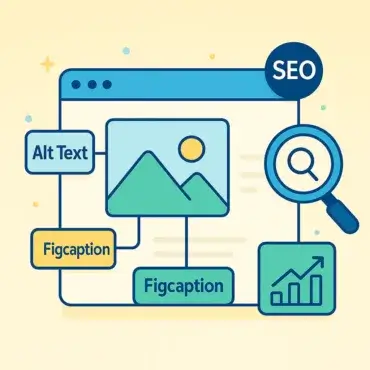
Which Image Text for SEO? Alt, Title, or Figcaption

image text for seo - alt, title, figcaption

Which Image Text Matters for SEO? When optimizing images for SEO, it's not always clear whether you should focus on alt text, figcaption, title attributes, or all of the above. This article breaks down what matters most, especially for Google Image search and featured snippets.

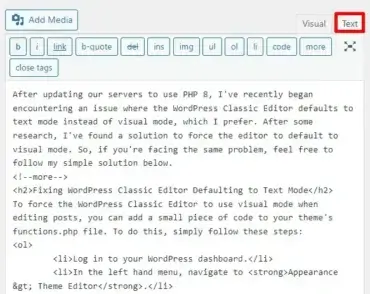
WordPress Classic Editor Defaulting to Text Mode

WordPress Classic Editor Defaults to Text Mode

How to Keep WordPress Classic Editor from Defaulting to Text Mode in PHP 8: Are you facing an issue where the WordPress Classic Editor defaults to text mode after updating to PHP 8? You're not alone! Many users prefer the visual editor for its easy to use WYSIWYG interface, and this unexpected change can be frustrating.

How to Share YouTube with Timestamp

Embed YouTube with Timestamp Facebook

YouTube with Timestamp video sharing on Social Media. Looking to share a specific part of a YouTube video on platforms like Facebook, Twitter (X), or LinkedIn? Adding a YouTube timestamp (sometimes called a video jump link or deep link) to your video URL lets you direct viewers to the exact moment that matters, whether it's a highlight, tutorial step, or key takeaway. In this updated guide, we'll show you how to share YouTube videos with timestamps across all major social media platforms, improve click-through rates, and keep your audience engaged from the first second they watch.

Add Missing Title Attribute to Images - Astra Theme

img title attribute astra theme

By default the Free WordPress Astra Theme does not display the title attribute you add to your images. Img title attributes or image title tags are useful for SEO. It can be a real bummer to find your images are not showing the title attribute, especially when you have taken the time to enter and optimize them.

htaccess redirect downloads to latest version

redirect downloads

htaccess redirect downloads; Looking to redirect file downloads to the latest version? When you offer downloadable files such as software installers, utilities, or documents, older versions often remain bookmarked, shared, or indexed by search engines. This can lead to confusion, support issues, and users running outdated or insecure software.

In this simple solution, I show you how to use .htaccess rules to automatically redirect all download requests for older file versions to the most recent release. This ensures visitors always receive the latest file, no matter which versioned link they request. For example, requests for files ranging from filename-0.0.0.1.exe through filename-2.0.0.8.exe will all be redirected to filename-2.0.0.9.exe.

How to Create a CSS Pressed Button Effect

CSS Pressed Button Effect

In this tutorial, we will be creating a CSS pressed button effect. This button will have the appearance of being depressed and will include an option to stay stuck when clicked. The entire process is written for beginners and makes for a simple way to begin digging into and learning style modifications.

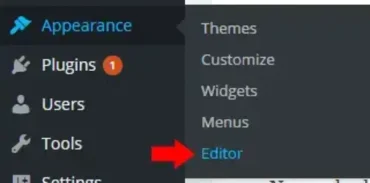
WordPress Appearance Editor Missing

Appearance Editor

WordPress Appearance Editor Menu Option is Missing, Recently, I noticed that the option to edit my theme files directly from the WordPress dashboard had disappeared. If your Appearance > Editor link is missing, don't panic! The cause, in my case, was a setting inside iThemes Security that disables the file editor for security reasons. Here's exactly how I fixed it.

Disable Image Attachment Pages in WordPress

WordPress Disable Image Attachment Pages. In the following simple solution, I show you one way to remove or prevent attachment pages from appearing for every image attachment you add to WordPress. Because WordPress stores attached image data in the database as a Post Type, a URL is automatically created for each image.

Embed YouTube Videos in WordPress without Plugins

Copy YouTube Link

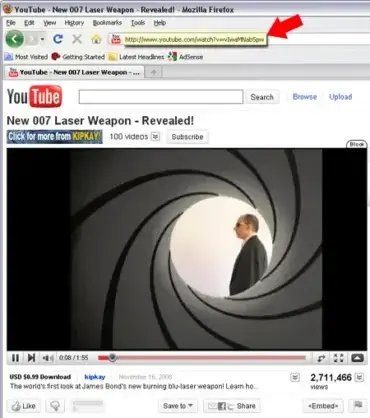
How to Embed YouTube Videos in WordPress Without Plugins: WordPress makes it easy to embed YouTube videos directly into posts and pages without installing any plugins. Simply paste the YouTube URL, and WordPress automatically converts it into a responsive video embed.

WordPress Search and Replace: URLs and Text Safely

Use YUMI to make a KASPERSKY BOOTABLE USB

Need to replace an old URL, domain, or repeated phrase across WordPress content? You can use a search-and-replace tool, WP-CLI, or a direct SQL query. The safest method depends on what you're changing: WP-CLI and reputable WordPress migration tools are generally better for site-wide changes because they can handle serialized data. A basic SQL REPLACE() query only changes the specific column and table you target.

This guide shows how to preview and replace text in post content with phpMyAdmin, explains the limitations of direct SQL, and includes a safer WP-CLI workflow. Always take a fresh database backup before changing production data.

Recommended method: use WP-CLI search-replace

If you have SSH or hosting-terminal access, WP-CLI's search-replace command is usually a better choice for a WordPress-wide URL migration because it understands PHP-serialized data. Start with a dry run so you can review the proposed changes without writing to the database.

# Preview matching changes without modifying the database
wp search-replace 'http://old.example' 'https://new.example' --dry-run

Review the output and confirm the source and destination strings are correct. After taking a backup and verifying the dry run, run the same command without --dry-run:

wp search-replace 'http://old.example' 'https://new.example'

Use your actual old and new values. Avoid broad replacements unless you understand every match. For a multisite installation or a migration involving specific tables, check the WP-CLI documentation and select the appropriate scope before running the live command.

Replace text in post content using phpMyAdmin

A direct SQL query can be useful for a narrow, well-understood change to the post_content column. It does not update every location in WordPress, and it should not be used as a universal site migration method.

  1. Make and verify a current database backup.
  2. Open phpMyAdmin from your hosting control panel and select the correct WordPress database.
  3. Confirm your actual WordPress table prefix. The examples below use wp_; your tables may use a different prefix.
  4. Run a read-only preview query first, replacing the sample strings with your exact values.
SELECT ID, post_title
FROM wp_posts
WHERE post_content LIKE '%http://old.example%';

Inspect the matching posts. If the results are exactly what you expect and your backup is ready, this query replaces the matching string only in post content:

UPDATE wp_posts
SET post_content = REPLACE(
    post_content,
    'http://old.example',
    'https://new.example'
)
WHERE post_content LIKE '%http://old.example%';

Replace wp_posts with your actual table name and use exact search and replacement strings. The WHERE clause limits the rows considered to content containing the old string. This query changes database content immediately; it is not a preview or an undoable WordPress editor action.

Important limitations of direct SQL

  • Only the selected column changes. This example targets wp_posts.post_content. It does not automatically update post metadata, options, widgets, plugin tables, or other fields.
  • Serialized data can break. Do not use a plain SQL replacement on PHP-serialized values, which may be stored in options or post metadata. A replacement can invalidate the stored string lengths. Use WP-CLI or a migration tool that supports serialized data.
  • Table prefixes vary. Do not assume the prefix is wp_; verify it first.
  • Backups are essential. A mistaken replacement can affect many records. Confirm the backup can be restored before running a bulk update.
  • Choose narrow search strings. Broad words or short URL fragments can change unrelated content.

Can a WordPress plugin do this?

Yes. A reputable search-and-replace plugin can provide a visual interface and, when it supports serialized data, is preferable to raw SQL for many site-wide updates. Test with a dry run first, check which tables are selected, and create a database backup before applying changes.

Frequently asked questions

Will this SQL query replace a URL everywhere on my site?

No. The example changes only matches in the post_content column of the selected posts table. Other tables and fields require separate handling. For a broad WordPress migration, use WP-CLI or a tool that understands serialized data.

Can I use SQL search-and-replace on post metadata or options?

Be careful. Metadata and options may contain PHP-serialized values. A basic SQL string replacement can corrupt those values. Use a serialized-data-aware tool instead.

Should I run a preview before replacing text?

Absolutely. Use a dry run with WP-CLI or a read-only SELECT query in phpMyAdmin, review the matches, and back up the database before any live update.

What if I only need to replace a URL in post content?

A targeted SQL query can work for that narrow case if you understand the table and column, use exact values, and have a verified backup. WP-CLI remains a good option when available.

Fatal error: Allowed memory size of bytes exhausted

fatal error when upgrading or updating wordpress

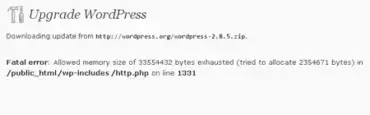
Fixing the "Allowed Memory Size Exhausted" Fatal Error When Upgrading WordPress: When attempting to upgrade WordPress, you might encounter a Fatal error like we did on one of our WordPress installs. This usually happens during automatic upgrades (via the dashboard) on sites with many posts, heavy plugins, or large themes. The error typically appears as:

Bulk Delete WordPress Comments

mass delete comments

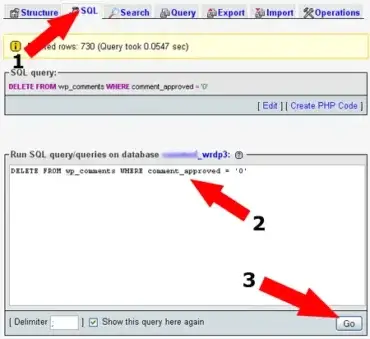
Need to bulk delete WordPress comments fast? If your site has hundreds or thousands of spam or pending comments, removing them manually through the WordPress dashboard can take a long time.

This guide shows you how to delete WordPress comments directly from your database using phpMyAdmin. When used correctly, this method can remove large amounts of comments in seconds.

How to Adjust or Disable WordPress Autosave

WordPress autosave protects your work by saving drafts while you edit. If frequent saves are interrupting your workflow, you can adjust the autosave interval or, in limited cases, disable the Classic Editor autosave script. Increasing the interval is usually the safer choice because disabling autosave can mean losing edits after a browser crash, connection failure, or unexpected logout.

This guide explains the difference between Classic Editor autosave and the Block Editor's recovery features, how to change the interval, and what to know before disabling anything. The examples belong in a small site-specific plugin, a must-use plugin, or your child theme, not in WordPress core files.

Change the WordPress autosave interval

If autosave is happening too often, try increasing the interval before disabling it. Add this filter to a site-specific plugin or your child theme's functions.php file:

/**
 * Set the WordPress autosave interval to 5 minutes.
 */
add_filter( 'autosave_interval', function ( $interval ) {
    return 300; // Seconds: 300 = 5 minutes.
} );

This changes the interval in seconds. For example, 300 is five minutes and 600 is ten minutes. A longer interval means fewer automatic saves, but it can also mean more recent edits are lost if something goes wrong. Test the change in the editor you use.

Disable the Classic Editor autosave script

Use this only if you understand the risk. This method deregisters the legacy autosave JavaScript used by the Classic Editor. It does not turn off every recovery or autosave feature in WordPress, and it is not a reliable way to disable the Block Editor's full autosave behavior.

To apply it only on post and page edit screens, add this to a site-specific plugin or your child theme's functions.php:

/**
 * Disable the legacy autosave script on Classic Editor screens.
 */
add_action( 'admin_enqueue_scripts', function ( $hook ) {
    if ( ! in_array( $hook, array( 'post.php', 'post-new.php' ), true ) ) {
        return;
    }

    wp_deregister_script( 'autosave' );
} );

This is a broad switch for those edit screens, not a per-post-type or per-user setting. Confirm that it has the intended effect with your editor and plugins before relying on it. If the Block Editor is in use, keep its autosave and recovery protections enabled whenever possible.

Where should the code go?

  • Site-specific plugin: A good choice for functionality that should remain active if you change themes.
  • Must-use plugin: Loads automatically and is useful for a small site-wide behavior. Put the PHP file directly in wp-content/mu-plugins/.
  • Child theme functions.php: Fine when the behavior belongs with your theme. Back up the file before editing.
  • WordPress core files: Do not edit them. Core updates can overwrite changes and unsupported edits make maintenance harder.

Limit the number of saved revisions

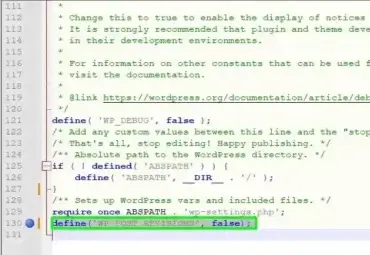
Autosaves and revisions serve different purposes. If your goal is to limit database growth, consider limiting the number of revisions rather than removing recovery features. Add this line to wp-config.php, above the “That's all, stop editing” line:

define( 'WP_POST_REVISIONS', 5 );

This sets WordPress to keep up to five revisions per post or page. Back up your site before changing configuration, and avoid setting revisions to false unless you have a clear reason and a dependable backup workflow. This setting does not replace database maintenance or backups.

Frequently asked questions

Should I disable WordPress autosave?

Usually, no. Autosave helps recover work after a crash or interruption. If saves are disruptive, try increasing the interval first and keep regular backups.

Does this code disable autosave in the Block Editor?

Not completely. The script deregistration example targets the legacy Classic Editor autosave script. The Block Editor has its own editor and REST-based save and recovery behavior, so do not assume this snippet disables all of it.

Will the changes survive a WordPress update?

Code placed in a site-specific plugin, must-use plugin, or child theme is not normally overwritten by WordPress core updates. Avoid editing core files directly.

Can I reduce database growth without disabling autosave?

Yes. You can limit the number of revisions with WP_POST_REVISIONS and maintain backups. Autosaves, revisions, and backups have different roles, so one should not be treated as a substitute for the others.

Adsense WordPress Shortcode

AdSense WordPress Shortcode: In this guide, I will show you how to create a WordPress shortcode that allows you to insert Google AdSense ads directly into posts or pages while writing content in WordPress.

Using a shortcode gives you precise control over ad placement without hardcoding ads into templates. This approach works with modern, responsive AdSense code and is compatible with current versions of WordPress.

Automatically Update Copyright Date in WordPress

Update Copyright Date in WordPress: In this quick guide, I will show you how to automatically update your WordPress copyright year using a small PHP code snippet. Once added, your site will always display the current year without you ever needing to update it manually again.

This is especially useful if you want your footer to show a range like "2006–2026" and keep it accurate as time goes on.

Warning Cannot modify header information

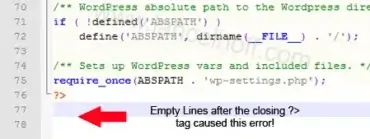
empty lines after the closing tag caused this error

Warning: Cannot modify header information - headers already sent by (output started at... If your receiving an error like this in your web browser just after trying to edit a file, the culprit is most likely that there are spaces, misc characters or newlines either just before an opening <?php tag or right after a closing ?> tag. In WordPress, the problem may appear from a corrupt wp-config.php file. However, the problem can occur in other files as well.

WordPress - Removing Post Date from Permalinks

wordpress custom permalink settings

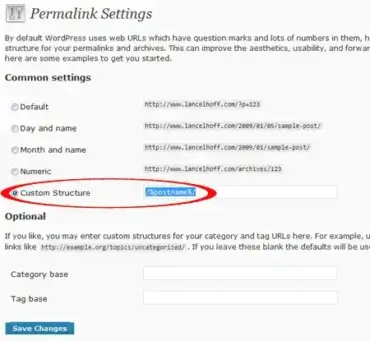
How to Remove the Date from WordPress Permalinks: Many WordPress sites historically used the day and name permalink structure (/%year%/%monthnum%/%day%/%postname%/) for posts. While this was popular for professional blogging in the past, modern SEO best practices recommend using simple post name (/%postname%/) or category and post name based URLs. Removing dates from your URLs helps improve readability, click-through rates, and long-term SEO value.

Embed PDF in WordPress

embedding a pdf file into wordpress

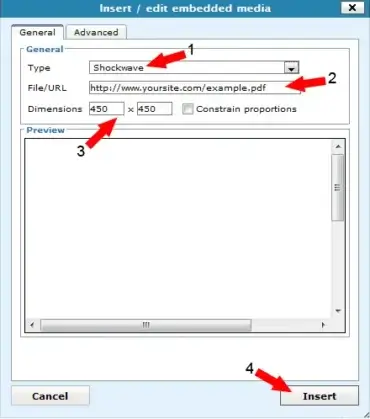
How to Embed PDF Files in WordPress? Embedding PDF files in WordPress is easy using the built-in tools, without plugins. You can also use the classic HTML embed code if needed.

Maximum execution time of 30 seconds exceeded

How to increase maximum execution time htaccess

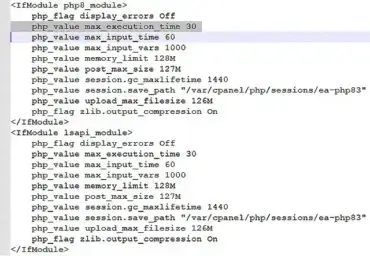
If you're encountering the error "Maximum execution time of 30 seconds exceeded" when running a script on your website or blog, you're not alone. This default limit is common on many servers. In this simple guide, I'll show you how to increase the execution time limit, helping you to successfully run your script.

Error Occurred in the Upload - IO Error

IO Error uploading images Wordpress

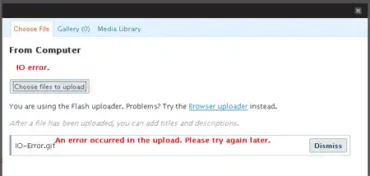
IO Error uploading images to WordPress. When attempting to choose a file to upload, you may encounter a message stating An error occurred in the upload. Please try again later. It seems there are a lot of WordPress users, including myself that have encountered this issue. In the following simple solution, I cover why you might be encountering this error, and what I did to address the problem and get my WordPress Images and uploads to stick.

Change WordPress Admin Username

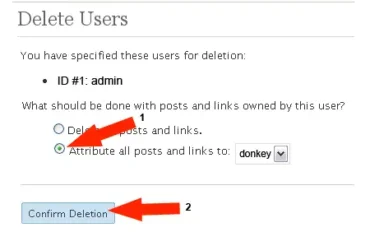
delete old users and move posts

Change the default WordPress admin login username: As I have previously mentioned, new WordPress installations, by default, use admin for the administrator username. This admin account provides access to the WordPress backend and grants access to all aspects of the WordPress installation. Since the default administrator login (admin) is well known, this can become a security vulnerability. A hacker could perform a brute force attack on the account and retrieve your WordPress admin login password, potentially compromising your site.

Change the excerpt length in WordPress

changing the wordpress excerpt length

Do you want to change the excerpt length in WordPress? Whether you want to show more or less content in your post previews, it's easy to customize the the_excerpt() function. In this tutorial, you'll learn how to increase or decrease the WordPress excerpt length by editing your theme's functions.php file.

How to Delete WordPress Post Revisions

Delete WordPress Post Revisions

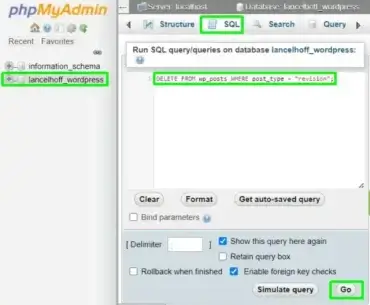
How to delete WordPress Post Revisions: The following simple solution covers how I delete or remove old post revisions from the SQL database. Back when WordPress 2.6 was rolled out, it introduced a new feature called post revisions. For sites with a lot of posts, this feature can really clutter up the database, at least with how it works in stock form.

WordPress: Set the maximum width of an uploaded image

How to Increase the Maximum Width of Uploaded Images in WordPress. By default, WordPress limits the maximum width of uploaded images (especially when inserted using the "Full Size" option in the editor). Historically, this default width was set to around 500px in earlier versions like WordPress 2.5, which made sense for narrow post layouts.

However, many modern themes use wider content areas (e.g. 700–1200px wide), and you may want your full-size images to take full advantage of that space. In this tutorial, we'll show you how to increase the maximum display width of uploaded images in WordPress by setting the global $content_width value.

How to Hide WordPress Categories

WordPress cat_id

How to Hide WordPress Categories: In the following simple solution, I show you how to keep a selection of categories from displaying on your WordPress pages and posts. This can be useful if you no longer wish to use or display specific categories on your site, but have already been indexed for the category content from search engines such as Google and Bing. Upon completion of this tutorial, the permalink structure of the hidden categories are still made available to the search engines, however, the categories you have chosen to hide are no longer prominently displayed on your blog to the visitor.

How to make WordPress Permalinks work in Xampp

How to Fix WordPress Permalinks in XAMPP: If your WordPress URLs look like http://localhost/?p=2 instead of clean links like http://localhost/my-post, it's usually because mod_rewrite is not enabled or Apache is ignoring your .htaccess file. The following steps will help you enable permalinks and .htaccess support in XAMPP.

Make WordPress Page or Post use different sidebar

How to add a second sidebar widget for use on separate pages or posts: The following tutorial covers the process of building a second widget compatible sidebar that can be used on specific pages or posts. Using a different WordPress sidebar for pages and posts allows the user to display different sidebar content on a given post or page. In addition, the user could add the duplicate sidebar widgets plugin to add the same widget content to both sidebars.

How to Make a custom WordPress Login Page

my custom wordpress login screen

The following simple custom WordPress login page solution is for those of you who want to customize and further beautify the Login screen, tailoring it to your sites look and feel. You might want to do this if you have a lot of registered members and don't want them to get bored with the default Login window. If you are logging into multiple sites, making this modification can help differentiate your sites, making it easier to keep track of which one your logging into.

How to add Related Posts to WordPress

How to Add Related Posts to WordPress (Modern Method) – Displaying related posts on your blog is a great way to keep readers engaged and increase page views. When visitors see additional content related to the article they are reading, they are far more likely to continue browsing your site.

Years ago, many WordPress users relied on the Ultimate Tag Warrior (UTW) plugin to display keyword related posts. However, modern versions of WordPress now include built in tagging, and there are much easier ways to display related posts without using outdated plugins.

This guide explains both the original UTW method (for historical reference) and a modern way to display related posts using WordPress tags.

’ Strange Characters in WordPress posts

After upgrading, restoring a database or moving a WordPress site, you may encounter strange characters in your WordPress posts text. It appears to be a character set or charset encoding problem where apostrophes, hyphens, quotation marks and dashes appear in posts and pages as strange characters like ’‚?. The symptoms are obvious. WordPress posts and pages suddenly contain garbled, weird, or strange characters.

How to manually upgrade WordPress

The following tutorial explains how to quickly manually upgrade WordPress to a newer version. The process is fairly straightforward and simple and shouldn't take more than a couple of minutes. However, I have frequently caught people including myself become lazy, skipping important steps of the process.

Removing the limit of posts per page

Removing the WordPress post per page limit: By default, WordPress posts are limited based on the posts_per_page setting. Making many of your older posts incredibly hard to find for both search engines and readers. Like many readers, I hate (pagination) having to read through pages of posts in a category one page at a time. So I decided to find a way to make every post within any given category show up on a single category page eliminating the need to flip through pages. In the following tutorial, I'll explain how this is accomplished.

WordPress broken by Plugin

At some point in time, nearly every WordPress Blogger will experience a broken WordPress blog due to the recent activation of a non compatible plugin. A broken plugin can wreak all sorts of havoc on a WordPress blog including the inability to access the WordPress administration panel. In most cases, when a blog breaks, the fix is fairly simple.

The following tutorial outlines a few WordPress quick fixes for a blogger to try when encountering the almost inevitable incompatible WordPress plugin problem that is causing site errors or limited blog access.

New Post does not show up for some people

new post doesn't show

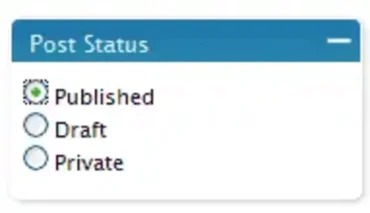
New WordPress Post is not showing up or displaying for some people: I get this question quite frequently and in almost every case, the Post is flagged as Private. The reason most bloggers think it has been posted and is viewable to the public is because private posts are viewable to those that are logged in with administration access rights and typically after a blogger writes and publishes a post, they go View site without logging out. So, the post shows up for them as the browse the site.

WordPress - How to change the more tag text

As a WordPress user, you may have noticed that you can insert a more tag to your posts so that only the text before this tag appears on the archive or category pages. By using the more tag, more post entries can appear on each page while still utilizing an introductory paragraph for each post. Then, when a visitor clicks on the more tag, they are sent to the full post where they can continue to read the article. However, the default WordPress more tag simply says (more...). In the following article, I explain how to change the more tag text to a text that is more meaningful like "click here to read on!"

Automate WordPress Post Publishing with Post Timestamp

automate wordpress posts

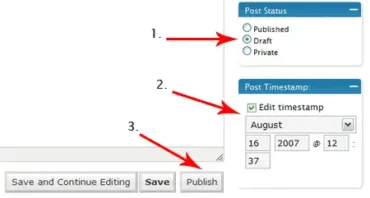
WordPress includes many helpful features that bloggers often overlook. One such feature is the ability to schedule posts using the Post Timestamp (now known as the Publish date). I use this feature during vacations, holidays, or busy weeks, it allows posts to go live automatically at a future time while I'm away from the computer.

How to Turn off trackbacks and pingbacks

The following article explains how to turn off WordPress trackbacks and pingbacks. In most cases, a WordPress Blog author might decide to disable comments if they are getting an overwhelming amount of spam. However, sometimes the spam can still get through in the form of trackbacks or pingbacks, enabling an abusive user to spam links as comments on the affected blog. Luckily this feature can be easily turned off and or totally eliminated entirely from your WordPress blog in just a few steps.

WordPress with both Static Home and latest Posts Page

wordpress static frontpage options

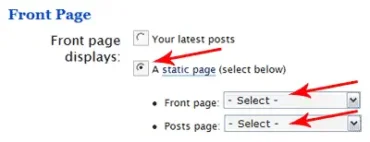
This article explains how to run a static front or home page while still resuming the chronological blog posts on another page. This basically allows a user to have both a Website and chronological Blog of the same content. For example if you write a page titled blog, it would be accessible separately at www.yoursite.com/blog. This article assumes that you've already set your site to use a static front page using WordPress.

Making a WordPress post template

Do you publish WordPress posts on a regular basis which use the same structure? Maybe you have a signature or picture you would like to add to every post? You can eliminate the time spent going back and forth between posts doing copy and paste functions by simply creating a post template. A post template can automatically add text, images or code to every new post you create. Currently, I don't use a WordPress post template on this site. However, I have set it up for others who use specific images and signatures that need to be added to the content of every post.

Customizing the WordPress WYSIWYG TinyMCE visual editor

Adding addtional buttons or tools to WordPress WYSIWYG TinyMCE visual editor: Like most people, you probably enjoy using the built in TinyMCE visual editor that is included with WordPress. However, by default the included WYSIWYG editor lacks some essential tools like font color, font size, font family and more. The good news is that most of these tools are already included in WordPress but are simply not active. The following tutorial shows you how to add additional buttons to include these tools to your WordPress visual editor.

Add a button to change font color in WYSIWYG

font color text tool

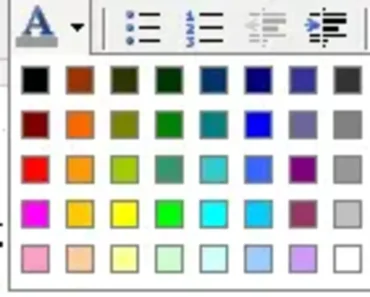
Learn how to safely add font color in WordPress using Gutenberg, the Classic Editor with a plugin, or custom CSS, no core file edits required. This tutorial covers all three methods.

How to set a WordPress Static Front Page

WordPress is perfect to use as a personal blogging platform. But did you know that it can also be used as a complete Web Site replacement? By using the Static Front Page option built into WordPress version 2.1 and later, one can literally turn a Blog into a Website. In addition, the user can still retain the Blog Post structure.

WordPress Adding Banners to a Single Page

WordPress Adding Banners: This tutorial explains how to add a banner to a single page or set of pages in WordPress. This is particularly useful for those that have the desire to display a specific banner on a per page basis. For example, you might want one page to present a banner but do not want the banner to appear on your whole site. This can easily be accomplished in just a few steps, so let's get started.

Display Adsense Search Results Within WordPress Pages

ser3 png

Display Google AdSense Search Results on Your WordPress Site. By default, Google AdSense for Search displays search results on a Google hosted page. However, website owners can configure AdSense to show those results directly on their own site using a custom landing page. This tutorial explains how to integrate AdSense search results into your WordPress site using a custom page template.

How to fix the WordPress word spacing problem

The drama of WordPress word spacing issues: When I first installed WordPress blogging software, I was impressed and thought to myself, this is much better than most of the previous open source blogging software I've used. As I started to become more familiar with WordPress, I began to find some small bugs and quirks. Most of these bugs and quirks were fixed with simple update versions of WordPress and third party plugins.